Introduction
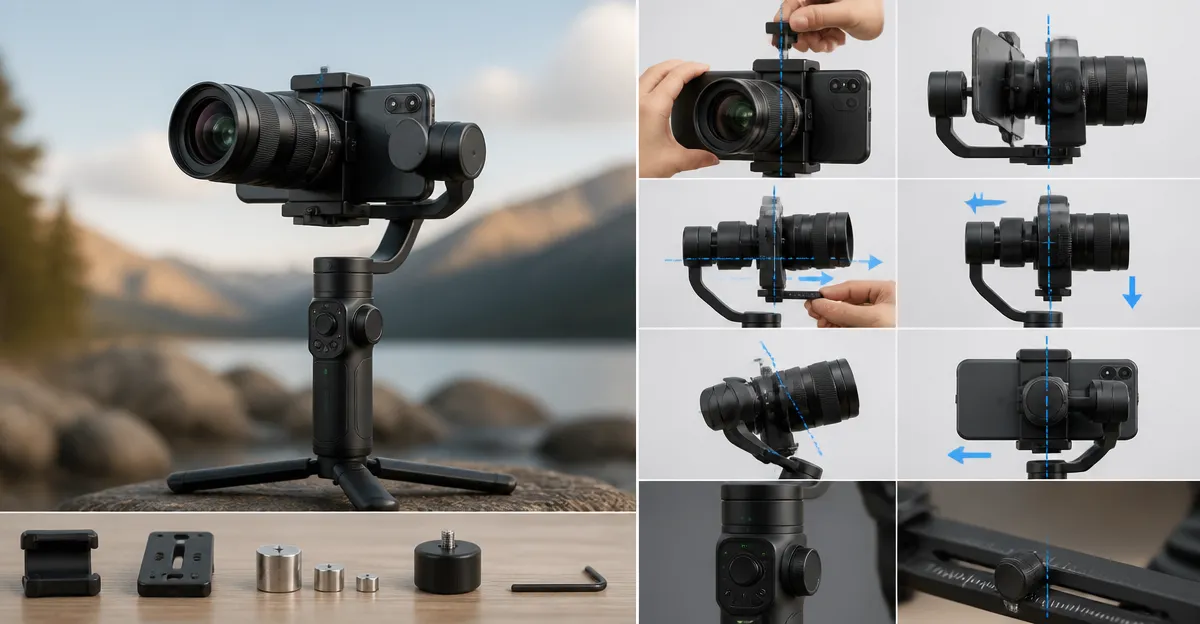
This guide will teach the reader how to balance a heavy lens on a smartphone gimbal safely and efficiently. Mastering this technique enables smoother footage, longer battery life, and reduced motor strain. The reader will learn the required tools, a detailed step‑by‑step process, and professional tips that seasoned creators use. By following the instructions, one can achieve cinematic results without investing in expensive camera rigs.
What You'll Need
- Smartphone gimbal capable of supporting additional weight (e.g., DJI Osmo Mobile 7 or DJI Osmo Mobile 8)
- Heavy smartphone lens attachment or clip‑on telephoto lens
- Balancing counterweight (optional but recommended for lenses over 30 g)
- Micro‑USB or USB‑C charging cable for on‑the‑go power
- DJI Mimo app or Hohem Joy app for calibration assistance
Step 1: Prepare the Gimbal and Smartphone
Begin by charging the gimbal to at least 80 % to ensure sufficient power during calibration. Attach the magnetic phone clamp securely, making sure the smartphone sits centered on the grip. If using the DJI Osmo Mobile 7, note its 300 g weight, 10‑hour battery life, and 4.4‑star rating from over 4,300 reviews, which makes it a reliable base for heavy accessories. Power on the device and launch the DJI Mimo app to access the built‑in balance wizard.
Step 2: Mount the Heavy Lens
Place the heavy lens onto the smartphone using the manufacturer’s clip or a universal phone‑lens adapter. Ensure the lens axis aligns with the phone camera to avoid vignetting. The added weight will shift the center of gravity forward; therefore, one must anticipate a need for counterbalancing. For lenses that exceed the gimbal's native payload, consider the DJI Osmo Mobile 8, which offers AI native tracking, a built‑in extension rod, and a robust 3‑axis stabilization system rated 4.4 stars by more than 3,000 users.
Step 3: Rough Balance the Assembly
With the phone and lens attached, hold the gimbal upright and let it rest on a flat surface. Observe whether the device tilts forward, backward, or to either side. Adjust the phone position within the clamp by sliding it slightly toward the heavier side until the gimbal remains level without motor assistance. This rough balance reduces the load on the motors and prolongs battery life. The foldable tripod on both the Osmo Mobile 7 and 8 provides a convenient reference point for checking levelness.
Step 4: Fine‑Tune Using the App
Open the balance calibration feature in the DJI Mimo app. Follow the on‑screen prompts to let the gimbal perform micro‑adjustments while you observe the readout. The app will suggest incremental shifts of the phone or lens to achieve optimal equilibrium. If the app indicates persistent forward tilt, attach a small counterweight to the rear of the clamp using a Velcro strap. The DJI Osmo Mobile 7P includes a built‑in extension rod and tripod that can serve as a mounting point for lightweight counterweights, making fine‑tuning more convenient.
Step 5: Secure All Connections
After achieving balance, tighten all screws on the magnetic clamp and verify that the lens lock is engaged. Double‑check that the USB‑C charging cable is routed neatly to avoid interference with the gimbal’s movement. If you plan to record for extended periods, enable the gimbal's phone‑charging function; the Osmo Mobile 7 provides up to 10 hours of operation while simultaneously charging the phone.
Step 6: Test Motion and Stabilization
Perform a series of test movements: pan left and right, tilt up and down, and walk a short distance while recording. Review the footage for any jitter or motor strain. If the video exhibits wobble during forward motion, revisit Step 3 and adjust the phone position slightly backward. The Osmo Mobile 8's 360° pan rotation and AI tracking can help verify that the lens stays locked on the subject during dynamic shots.
Tips & Pro Tips
- Use the built‑in tripod as a temporary work surface when balancing; it provides a stable reference without needing additional equipment.
- When using a lens heavier than 40 g, add a small sandbag or metal disc to the rear of the clamp to shift the center of gravity.
- Activate One‑Tap Edit in the DJI Mimo app after each test to quickly review footage without exporting to a computer.
- For creators who require audio capture, the DJI Osmo Mobile 7P can be paired with the DJI Mic Mini TX, allowing the gimbal to power the microphone while maintaining balance.
- Avoid attaching large protective cases to the phone while balancing; excess bulk can shift the weight distribution and require additional counterweights.
Troubleshooting
Problem: Gimbal motors overheat after a few minutes of recording.
Solution: Verify that the balance is within the recommended tolerance (±5 g from center). Reduce lens weight or add a rear counterweight to alleviate motor strain.
Problem: ActiveTrack loses the subject during rapid movement.
Solution: Ensure the lens does not obstruct the phone's dual‑lens system. Clean the camera lenses and recalibrate the tracking algorithm in the app.
Problem: Battery drains quickly despite phone charging enabled.
Solution: Check that the gimbal is not operating in a high‑gain mode. Switch to standard stabilization mode and disable unnecessary lighting effects.
Conclusion
Balancing a heavy lens on a smartphone gimbal requires careful preparation, precise adjustments, and the right tools. By following the six steps outlined above, one can achieve a stable setup that preserves motor health and delivers professional‑grade footage. The recommended gimbals—DJI Osmo Mobile 7, DJI Osmo Mobile 8, and DJI Osmo Mobile 7P—provide reliable platforms for heavy‑lens applications, while the Hohem iSteady X3 SE Plus offers a budget‑friendly alternative with detachable remote control. Apply the pro tips and troubleshooting advice to maintain optimal performance, and one will enjoy smoother, more cinematic mobile video production.
Products Mentioned in This Guide
Frequently Asked Questions
Can I use any smartphone gimbal for a heavy lens attachment?
Only gimbals rated for extra payload, like DJI Osmo Mobile 7 or 8, should be used to avoid motor strain.
Do I need a counterweight for lenses over 30 g?
A counterweight is recommended for lenses above 30 g to maintain balance and protect the gimbal motors.
How does balancing the lens affect battery life?
Proper balance reduces motor effort, which extends the gimbal’s battery runtime.
What apps help calibrate the gimbal after adding a heavy lens?
The DJI Mimo app or Hohem Joy app provide calibration tools to fine‑tune balance settings.
Is it necessary to fully charge the gimbal before balancing a heavy lens?
Charging to at least 80 % ensures the gimbal has enough power for the extra load during setup.