Introduction
One will discover how to wirelessly synchronize a smartphone light source with the ZHIYUN Smooth 5S AI gimbal, creating smooth, well‑lit mobile video. This guide explains the technical concepts behind Bluetooth and Wi‑Fi pairing, demonstrates practical setup steps, and highlights why the recommended gimbal is uniquely suited for this workflow. By following the instructions, one can eliminate flickering shadows, maintain consistent exposure, and produce cinematic footage without cumbersome cables. The result is a streamlined production process that saves time and enhances visual storytelling.
What You’ll Need
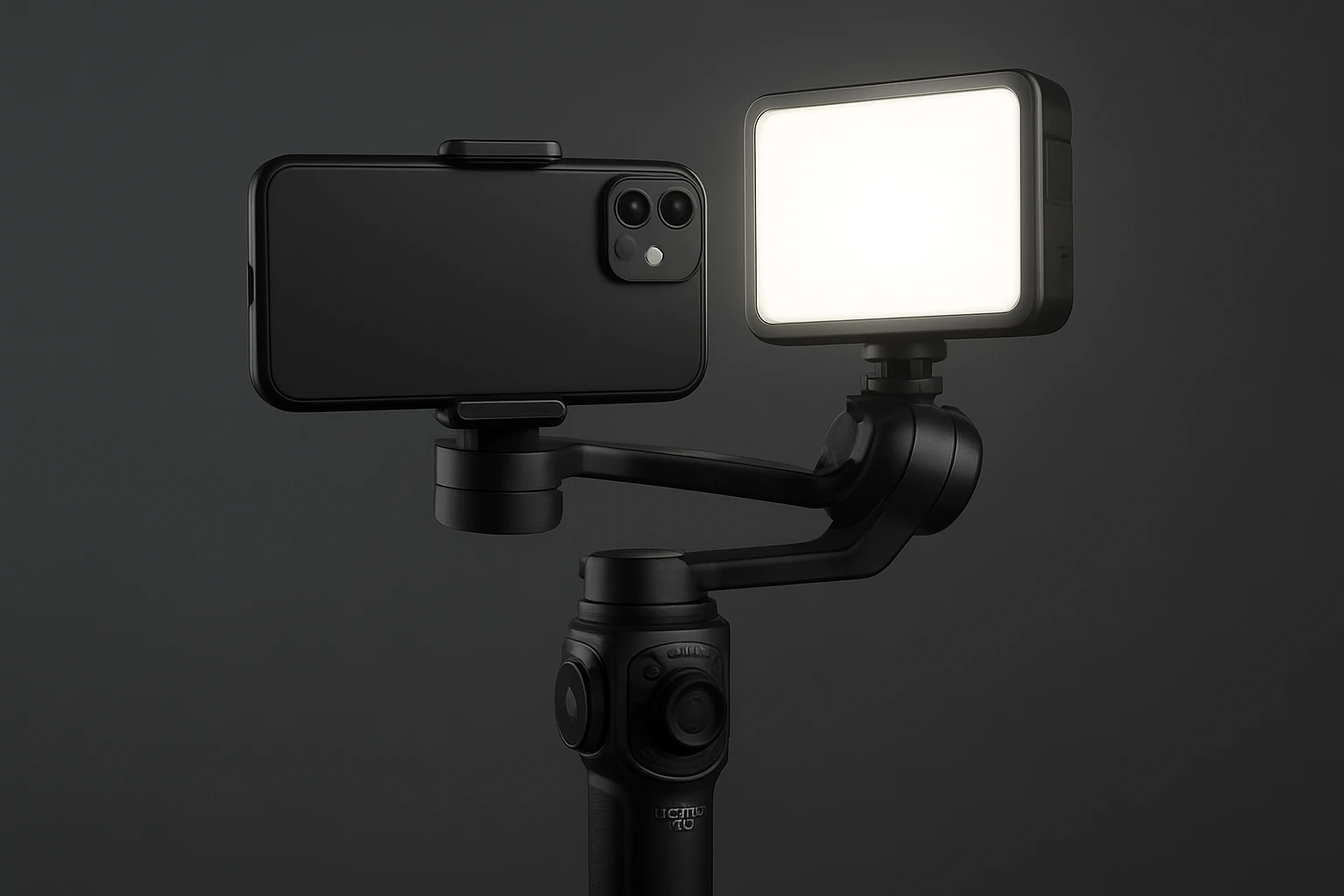
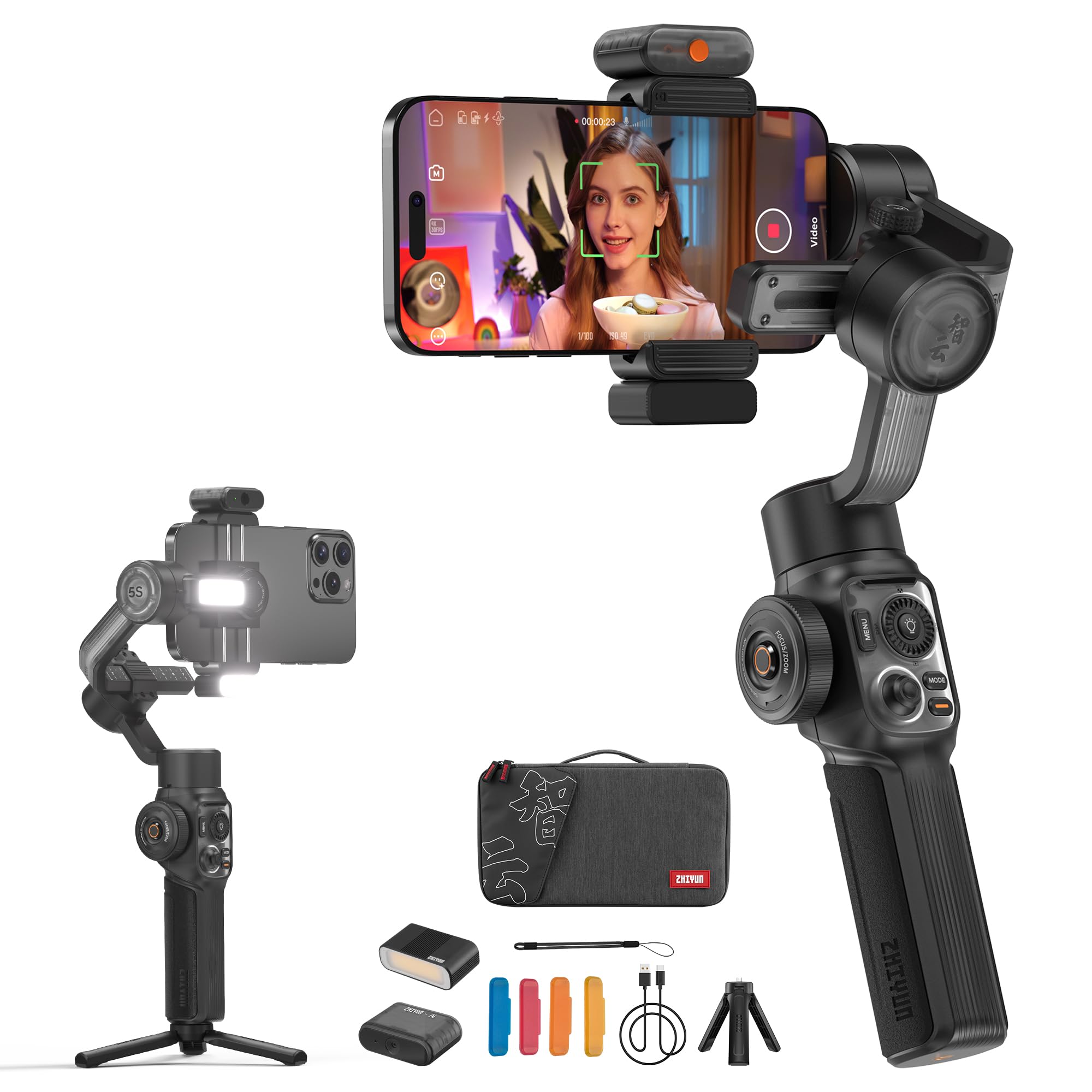
- ZHIYUN Smooth 5S AI – 3‑axis smartphone gimbal with AI tracking and built‑in magnetic fill light.
- Smartphone capable of Bluetooth 5.0 or Wi‑Fi Direct.
- Optional magnetic fill light accessory (sold separately) for enhanced illumination.
- Tripod or stable surface for initial calibration.
- Fully charged power bank or spare batteries for extended shoots.
Step 1: Unbox and Power the Gimbal
Begin by removing the ZHIYUN Smooth 5S AI from its storage bag and attaching the tripod base. Connect the USB‑C cable to a power source and press the power button until the status LED turns green, indicating that the unit is ready. The full‑keyboard control panel will display a welcome screen, allowing one to navigate menus without touching the smartphone screen. This hardware setup provides a stable foundation, ensuring that subsequent wireless connections are not disrupted by power fluctuations.
Step 2: Install the Companion App (Optional but Helpful)
Although the Smooth 5S AI can operate without an app, installing the ZHIYUN Mobile app on the smartphone enables advanced configuration of lighting intensity and AI tracking sensitivity. Download the app from the official app store, launch it, and grant Bluetooth and location permissions when prompted. The app will automatically detect the gimbal once Bluetooth is enabled, presenting a list of available devices. Selecting the gimbal initiates a secure pairing process that stores the connection for future sessions.
Step 3: Activate the Magnetic Fill Light
Attach the magnetic fill light to the designated slot on the gimbal’s side arm. Press the dedicated fill‑light button on the keyboard panel; the built‑in LED will illuminate, confirming activation. Adjust the light intensity using the left and right arrow keys, which modify the output in 10‑percent increments. This wireless light source eliminates the need for external cable‑driven LEDs, allowing one to keep the smartphone free for framing and focus control.
Step 4: Pair the Smartphone with the Fill Light via Bluetooth
Open the smartphone’s Bluetooth settings and ensure that “Discoverable” mode is enabled. The fill light will broadcast a device name such as “ZHIYUN‑Fill‑Light”. Select this entry, and when prompted, confirm the pairing code displayed on the gimbal’s screen. Once paired, the gimbal and fill light will exchange status data, enabling real‑time brightness adjustments from the keyboard panel. Wireless pairing ensures that the light follows the gimbal’s movements without any physical tether.
Step 5: Configure AI Tracking for Dynamic Lighting
Activate the AI tracking module by pressing the dedicated AI button on the control panel. Use a quick swipe gesture on the smartphone screen to designate the subject; the gimbal will lock onto the target and maintain focus while the fill light automatically follows. This feature is valuable for solo creators who need hands‑free operation, as the AI module continuously adjusts both stabilization and illumination based on the subject’s position.
Step 6: Test Synchronization and Record
Position the smartphone on the gimbal’s phone mount, ensuring that the camera lens is centered. Press the record button on the keyboard panel to begin filming. Observe the fill light’s response as the gimbal tilts, pans, or tracks a moving subject; the illumination should remain consistent, without flicker or lag. Conduct a short test clip of at least thirty seconds, then review the footage to verify that exposure and stabilization meet the desired standards.
Tips & Pro Tips
- Calibrate the gimbal’s balance before each shoot; an unbalanced setup can cause motor strain and reduce battery life.
- Use the fill‑light filters included in the package to soften harsh shadows when shooting outdoors.
- When filming in low‑light environments, increase the fill‑light intensity gradually to avoid overexposure.
- Enable the “Auto‑Lock” mode on the AI tracker for subjects that move erratically; this prevents the gimbal from losing lock during sudden direction changes.
Troubleshooting
Problem: Bluetooth connection drops after a few minutes.
Solution: Ensure that no other Bluetooth devices are competing for the same frequency band, and keep the smartphone within 2 meters of the gimbal.
Problem: Fill light flickers during rapid pans.
Solution: Update the gimbal’s firmware via the ZHIYUN Mobile app, as newer firmware resolves timing inconsistencies.
Conclusion
One has now mastered the process of wirelessly syncing smartphone lighting with the ZHIYUN Smooth 5S AI gimbal, enabling flawless mobile video production. By following the six detailed steps, creators can achieve professional‑grade stabilization, dynamic illumination, and hands‑free operation. The integration of AI tracking and magnetic fill light creates a versatile toolkit that adapts to a wide range of shooting scenarios. Continue experimenting with different lighting angles and AI settings to further refine one’s visual style.
Products Mentioned in This Guide
ZHIYUN Smooth 5S AI
Price: Not listed
Rating: Not listed
Key features include AI tracking, built‑in magnetic fill light, 3‑axis orthogonal stabilization, and a full‑keyboard control panel for intuitive adjustments.
Frequently Asked Questions
How do I pair my smartphone with the ZHIYUN Smooth 5S AI gimbal wirelessly?
Enable Bluetooth or Wi‑Fi Direct on the phone, open the ZHIYUN app, and select the Smooth 5S AI from the device list to complete pairing.
Can I use any smartphone for wireless sync with the Smooth 5S AI?
The phone must support Bluetooth 5.0 or Wi‑Fi Direct; most modern iOS and Android devices meet this requirement.
What is the purpose of the magnetic fill light accessory?
It provides extra illumination that syncs with the gimbal’s movements, eliminating shadows and keeping exposure consistent without cables.
Why does my light flicker after pairing?
Flickering usually indicates a weak Bluetooth signal; move the phone closer to the gimbal or switch to Wi‑Fi Direct for a more stable connection.
How can I extend battery life while wirelessly syncing lights?
Use a fully charged power bank or spare batteries on the gimbal and keep the phone’s screen brightness low during shoots.