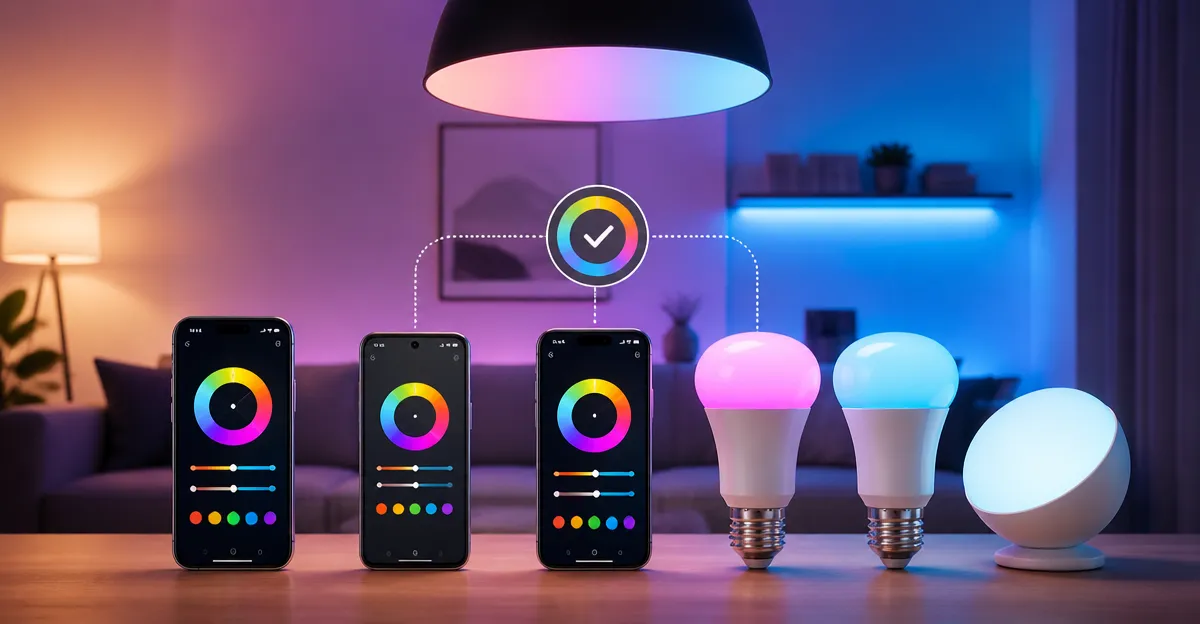
How to Match Colors Across Multiple Phones and Smart Lights: Step-by-Step Color Calibration & Synchronization Guide
Introduction
In modern homes, visual consistency between mobile devices and smart lighting has become a hallmark of sophisticated interior design. This guide explains how one can achieve accurate color matching across smartphones and smart bulbs, ensuring that the hue displayed on a screen aligns with the illumination in a room. Readers will learn foundational color theory, calibration techniques, product recommendations, and practical tips for long‑term maintenance.
The guide is structured to provide both theoretical insight and actionable steps. By the end of the article, one will be equipped to create a harmonious lighting environment that complements media consumption, photography, and everyday activities.
Background and Context
Color perception is governed by three primary factors: the light source spectrum, the display device's color gamut, and the observer's visual system. Smartphones use sRGB or DCI‑P3 color spaces, while smart bulbs emit light that can be tuned across a range of color temperatures and hues. Understanding the difference between color temperature (measured in kelvin) and hue (measured in degrees on the color wheel) is essential for accurate matching.
Kelvin values describe the warmth or coolness of white light. A lower kelvin value (e.g., 2700K) produces a warm, yellowish light, whereas a higher value (e.g., 6500K) yields a cool, bluish light. Hue adjustment allows smart bulbs to render millions of colors, which can be synchronized with a phone's display using dedicated apps or third‑party software.
Because smartphones and smart bulbs often rely on different communication protocols—Wi‑Fi, Bluetooth, or proprietary clouds—one must ensure that the chosen devices support the same ecosystem or can be linked through a common hub.
Key Concepts and Strategies
1. Establish a Baseline Calibration
Begin by calibrating the smartphone screen using built‑in calibration tools or third‑party apps such as Display Calibrator or SpyderX. Set the display to a neutral white point (usually D65, 6500K) and adjust brightness to a comfortable level that reflects typical room lighting.
Next, select a smart bulb that offers tunable white and color rendering index (CRI) greater than 90. A high CRI ensures that the bulb reproduces colors faithfully, reducing discrepancies between screen and illumination.
For example, the Linkind Tunable White Smart A19 Bulbs provide a CRI>90, a tunable range of 2700K‑6500K, and 800 lumens of output, making them an ideal baseline choice.
2. Use a Common Control Platform
Most smart bulbs integrate with voice assistants such as Alexa or Google Assistant. Selecting bulbs that share the same ecosystem as the smartphone simplifies synchronization. The Amazon Basics Smart Color A19 Bulb works exclusively with Alexa, while the Odnora RGBWW Smart A19 Bulbs support both Alexa and Google Assistant.
By linking the phone’s Alexa app with the bulbs, one can create routines that adjust both screen brightness and bulb temperature simultaneously.
3. Leverage Color Synchronization Apps
Applications such as Philips Hue Sync, LIFX, or third‑party tools like iLightShow enable real‑time color matching. These apps capture the dominant color on the screen and transmit the corresponding hue to the bulbs.
The Philips Hue Color Ambiance A19 Bulbs integrate with the Hue Sync software, offering precise synchronization for movies, music, and gaming.
When using a product that does not have a dedicated sync app, the generic BrightArk Circadian Full-Spectrum Bulb can still be controlled via its remote for manual temperature adjustments that match the phone’s display mode.
Product Recommendations
The following products have been selected based on their ability to support accurate color matching, ease of integration, and overall value.
- Linkind Tunable White Smart A19 Bulbs – Offers a wide temperature range, high CRI, and Alexa/Google Home compatibility. Ideal for establishing a calibrated white baseline.
- BrightArk Circadian Full-Spectrum Bulb – Provides three preset temperatures (2700K, 2100K, 1400K) with a remote, supporting circadian rhythm alignment.
- Amazon Basics Smart Color A19 Bulb – Features 16 preset colors, Alexa‑only control, and no hub requirement, suitable for color‑rich environments.
- Odnora RGBWW Smart A19 Bulbs – Delivers 16 million colors, music sync, and dual Wi‑Fi/Bluetooth connectivity, perfect for dynamic ambience.
- Philips Hue Color Ambiance A19 Bulbs – Integrates with Hue Bridge for advanced sync, extensive scene library, and multi‑assistant support.
Comparison and Selection Guide
| Feature | Linkind Tunable White | BrightArk Circadian | Amazon Basics Smart Color | Odnora RGBWW | Philips Hue Color Ambiance |
|---|---|---|---|---|---|
| Price (USD) | $27.00 | $9.99 | $11.19 | $14.99 | $52.95 |
| Color Temperature Range | 2700K‑6500K | 2700K/2100K/1400K | 16 preset colors | 2700K‑6500K + RGB | 2200K‑6500K |
| CRI | >90 | Not specified | Not specified | >90 | Not specified |
| Voice Assistant Support | Alexa, Google Home | None (remote only) | Alexa only | Alexa, Google Assistant | Alexa, Google Assistant, Apple Home |
| App Control | AiDot App | Remote only | Alexa app | Proprietary app | Hue app |
| Special Features | Group control, offline Bluetooth | Circadian rhythm modes | 16 colors, no hub | Music sync, dual connectivity | Hue Sync, extensive scenes |
| Rating | Not listed | 5/5 (1 review) | 4.4/5 (13,798 reviews) | 4.6/5 (127 reviews) | 4.6/5 (749 reviews) |
When selecting a bulb, consider the following criteria:
- Calibration Accuracy: Choose bulbs with CRI>90 and precise temperature steps.
- Ecosystem Compatibility: Align the bulb with the voice assistant used on the smartphone.
- Control Flexibility: Determine whether remote‑only control is sufficient or if app integration is required.
- Budget: Balance feature set against price; the BrightArk bulb offers circadian benefits at a low cost.
Step‑by‑Step Calibration Process
- Prepare the Environment – Dim natural light sources and close curtains to create a controlled lighting condition.
- Calibrate the Smartphone Display – Use the device’s display settings to set white point to D65 (6500K) and enable “True Tone” or “Night Shift” off.
- Install and Connect the Smart Bulb – Screw in the chosen bulb, open the corresponding app (AiDot, Alexa, Hue, etc.), and follow the pairing instructions.
- Set Baseline White Temperature – In the app, select 6500K for the bulb. Verify that the bulb’s light appears neutral against a white piece of paper.
- Match Color Temperature – If the phone is set to a cooler or warmer mode, adjust the bulb’s temperature to match. For example, set 2700K when the phone is in “Warm” mode.
- Synchronize Hue (Optional) – Launch a sync app (Hue Sync, LIFX, etc.) and enable “Screen Match.” The app will translate the dominant screen color to the bulb’s hue.
- Test Consistency – Open a high‑resolution image with known color values (e.g., a color chart) and observe whether the bulb’s illumination reproduces the colors accurately.
- Save Settings – Create a scene or routine in the app that stores the calibrated values for future use.
Repeat the process whenever the phone’s display settings are changed or when moving to a different room with distinct ambient lighting.
Best Practices and Tips
- Periodically recalibrate the phone’s display, as OLED panels can shift over time.
- Use a color‑accurate monitor calibration tool for professional photography or video work.
- Avoid using physical dimmer switches with smart bulbs; instead, rely on app‑based dimming to preserve color fidelity.
- When multiple bulbs are used, group them in the app to ensure uniform temperature and hue across the space.
- Take advantage of circadian modes (e.g., BrightArk’s 1400K “Campfire”) in the evening to reduce blue‑light exposure.
- For music‑driven ambience, enable music sync on Odnora bulbs, but remember that this overrides manual color matching.
Frequently Asked Questions
1. Do I need a hub for these smart bulbs?
Only the Philips Hue bulbs require a Hue Bridge for full functionality. The Linkind, Amazon Basics, Odnora, and BrightArk models operate directly via Wi‑Fi or Bluetooth without an additional hub.
2. Can I control the bulbs from my iPhone if I use Alexa‑only devices?
Yes. The Alexa app is available on iOS, allowing iPhone users to control Alexa‑compatible bulbs such as Linkind, Amazon Basics, and Odnora.
3. How does CRI affect color matching?
CRI (Color Rendering Index) measures how accurately a light source reveals the true colors of objects compared to natural light. A CRI above 90, as found in Linkind and Odnora bulbs, ensures that colors displayed on the phone are reproduced faithfully in the illuminated environment.
4. What if my phone uses a different color space than sRGB?
Most Android devices support DCI‑P3, which has a wider gamut. In such cases, use a sync app that can translate DCI‑P3 values to the bulb’s RGB capabilities, or limit content to sRGB for the most accurate match.
5. Is it safe to use smart bulbs with a traditional dimmer switch?
Smart bulbs are not designed for use with conventional dimmer switches. Doing so can cause flickering or reduce lifespan. Always dim through the app or voice assistant.
6. How can I reduce energy consumption while maintaining color accuracy?
Set the bulb to the lowest brightness that still provides adequate illumination for the task. Use scheduling features to turn off lights when not needed, as demonstrated by the Linkind bulb’s timer function, which can save up to 85% compared with incandescent equivalents.
Conclusion
Matching colors across smartphones and smart lights requires a systematic approach that combines proper display calibration, selection of high‑CRI bulbs, and integration within a common control ecosystem. By following the step‑by‑step process, employing the recommended products, and adhering to best practices, one can achieve a seamless visual experience that enhances comfort, productivity, and aesthetic appeal.
The techniques outlined in this guide are applicable to a wide range of environments, from home offices to entertainment rooms. Consistent recalibration and mindful use of automation will ensure that the color harmony endures over time.
Products Featured in This Guide
Linkind Tunable White Smart A19 Bulbs
Price: $27.00 – High CRI>90, tunable 2700K‑6500K, Alexa & Google Home compatible, 800 lumens, 4‑pack.
Featured because it provides a precise white baseline and robust voice‑assistant integration, essential for accurate color calibration.
BrightArk Circadian Full-Spectrum Bulb
Price: $9.99 – 9 W, three preset temperatures (2700K, 2100K, 1400K), remote control, 5/5 rating.
Featured for its circadian‑focused temperature settings that support evening eye‑comfort and sleep hygiene.
Amazon Basics Smart Color A19 Bulb
Price: $11.19 – 9 W, 16 preset colors, Alexa‑only, no hub required, 4.4/5 rating (13,798 reviews).
Featured because it offers affordable color versatility and seamless Alexa integration for quick scene creation.
Odnora RGBWW Smart A19 Bulbs
Price: $14.99 – 9 W, 16 million colors, music sync, dual Wi‑Fi/Bluetooth, 4.6/5 rating (127 reviews).
Featured for its dynamic color range and music‑sync capability, ideal for immersive entertainment spaces.
Philips Hue Color Ambiance A19 Bulbs
Price: $52.95 – 7.2 W, 2200K‑6500K, works with Alexa, Google Assistant, Apple Home, Hue Bridge required, 4.6/5 rating (749 reviews).
Featured for its advanced Hue Sync integration, extensive scene library, and multi‑assistant compatibility, making it the premium choice for professional color synchronization.