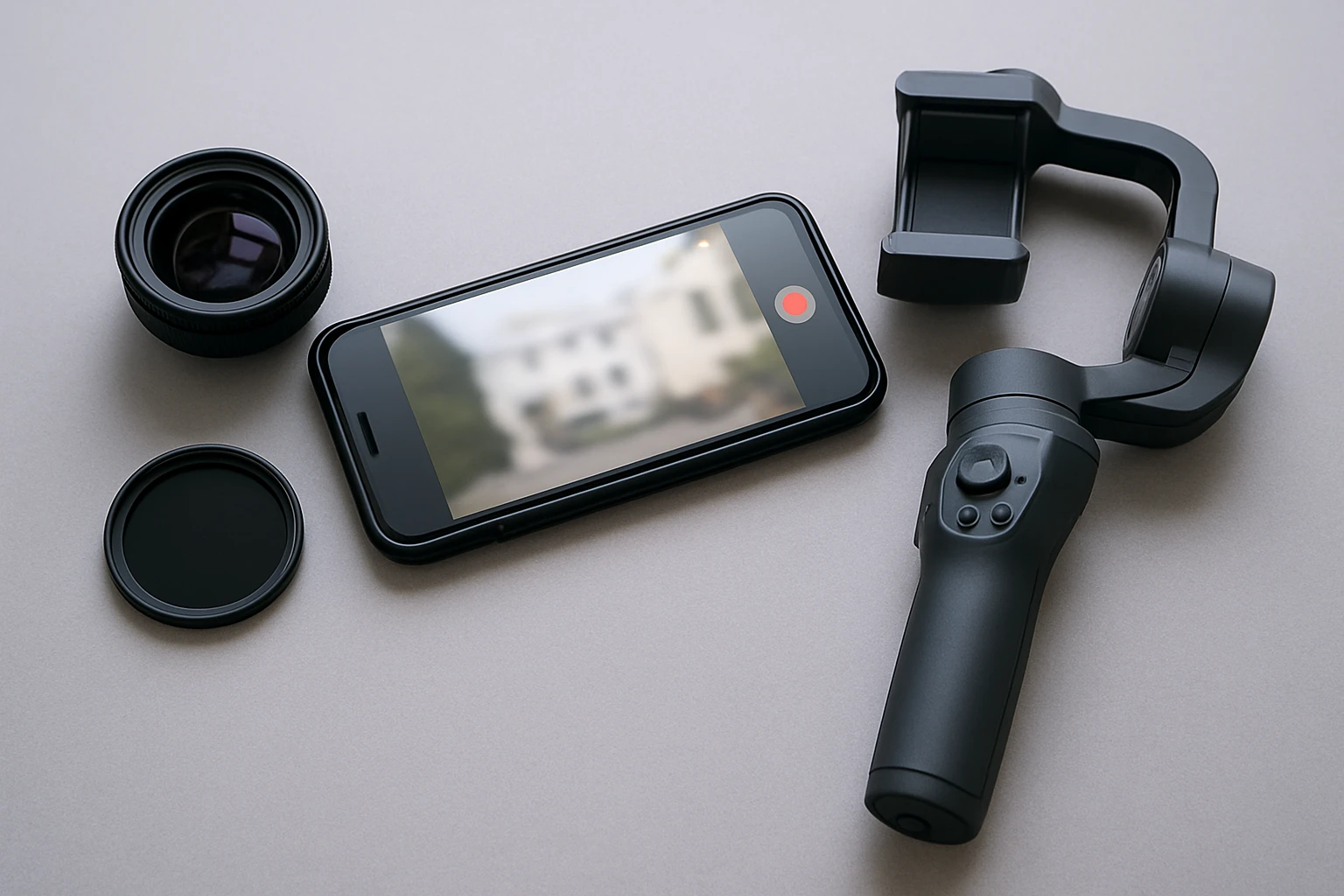
How to Avoid Rolling Shutter on Smartphones with Lenses and Gimbals
Introduction
Rolling shutter is a common artifact in smartphone video that causes vertical lines to appear slanted when the camera or subject moves quickly. It occurs because the sensor reads rows of pixels sequentially rather than simultaneously, leading to distortion in fast motion scenes. This guide explains how to mitigate rolling shutter using optical tools such as lenses and neutral density (ND) filters, as well as mechanical stabilisation with gimbals. By following the steps, the reader will be able to produce smoother, more professional‑looking footage without needing expensive dedicated cameras.
What You’ll Need
- Smartphone with manual camera controls (iOS or Android).
- Gimbal stabiliser compatible with the smartphone model.
- External lens kit that includes an ND filter and wide‑angle options.
- Clip‑on mount or universal clamp for attaching lenses.
- Optional: Small tripod, external lighting, and a protective case.
All of the above items can be sourced from reputable retailers. The only product that will be highlighted in detail is the MIAO LAB 11‑in‑1 Lens Kit, which provides the essential optical tools needed to control exposure and minimise rolling shutter effects.
Step 1: Understand the Cause of Rolling Shutter
Before applying any hardware solution, one must comprehend why rolling shutter occurs. The sensor scans the image from top to bottom; when the scene changes between scans, the resulting frame appears skewed. Fast panning, rapid subject movement, or high‑speed vibrations amplify the effect. By reducing the amount of light entering the sensor, the camera can use a faster shutter speed, thereby limiting the time difference between the first and last row readout.
Step 2: Choose the Correct Lens and Filter Combination
The most effective way to increase shutter speed without raising ISO is to limit the amount of light reaching the sensor. An ND filter acts as a variable sunglasses for the camera, allowing the same aperture while reducing exposure time. The MIAO LAB 11‑in‑1 Lens Kit includes an ND32 filter, which cuts light by three stops, enabling shutter speeds up to 1/2000 s in bright daylight. In addition, the kit provides a wide‑angle lens that captures more of the scene, reducing the need for rapid pans that trigger rolling shutter.
Key features of the lens kit that are relevant to this step:
- ND32 filter for high‑speed exposure control.
- 140° super‑wide angle lens to minimise extreme camera rotations.
- Aluminium construction for durability and precise alignment with the phone camera.
- Universal detachable clamp that fits most smartphones and tablets.
Price: $27.99. Rating: 4 out of 5 stars based on 2,291 reviews. The combination of ND filter and wide‑angle lens directly addresses the root cause of rolling shutter by allowing faster shutter speeds while maintaining proper framing.
Step 3: Set Up the Gimbal for Stable Motion
A gimbal stabilises the smartphone on three axes, counteracting hand tremors and sudden movements that would otherwise exacerbate rolling shutter. Mount the smartphone on the gimbal according to the manufacturer’s instructions, ensuring the device is balanced before powering on. Once balanced, engage the gimbal’s follow‑mode for smooth pans and tilts. When using the MIAO LAB 11‑in‑1 Lens Kit, attach the desired lens to the clip before mounting the phone; the clip is designed to sit flush with the phone camera, preventing misalignment that could cause vignetting.
Recommended gimbal settings for rolling shutter mitigation:
- Set the motor strength to medium; excessive force can introduce jitter.
- Enable motion‑blur reduction if the gimbal firmware offers it.
- Use the built‑in timer or remote trigger to avoid touching the phone during exposure.
Step 4: Adjust Camera Settings for Optimal Exposure
Open the smartphone’s native camera app or a manual‑control app such as Filmic Pro. Select manual mode, then set ISO to the lowest native value (usually 100 or 200) to minimise sensor noise. Apply the ND32 filter from the lens kit and manually increase shutter speed to at least 1/500 s for daylight shooting; faster speeds such as 1/1000 s are preferable for moving subjects. Adjust the focus to infinity when filming landscapes, or use the macro lens from the kit for close‑up shots where depth of field is critical.
When recording at 24 fps or 30 fps, ensure the shutter speed follows the 180‑degree rule (approximately double the frame rate) to achieve natural motion blur without inducing rolling shutter. The ND filter allows you to maintain this relationship even in bright conditions, preventing the camera from automatically selecting a slower shutter speed that would cause distortion.
Step 5: Capture and Review Footage
Begin recording while keeping the gimbal movements slow and deliberate. Observe the preview screen for any residual skew; if it appears, increase the shutter speed further or add a second ND filter if the kit permits stacking. After each take, review the clip on a larger display to verify that vertical lines remain straight and that motion appears fluid. If rolling shutter is still present, consider reducing the field of view by switching from the wide‑angle lens to the standard lens within the kit, as a narrower view reduces the angular velocity of the scene across the sensor.
Consistent review and incremental adjustment are essential for mastering rolling shutter avoidance. Over time, the operator will develop an intuition for the optimal combination of lens, filter, and gimbal settings for any lighting condition.
Tips & Pro Tips
- When shooting under direct sunlight, use the ND32 filter together with the wide‑angle lens to keep shutter speeds high without overexposing the image.
- For indoor or low‑light environments, remove the ND filter and rely on the built‑in image‑stabilisation of the gimbal.
- Use the colour‑graded lenses (blue, gray, yellow, orange) from the kit to create creative mood shifts; these do not affect rolling shutter but can enhance visual storytelling.
- Keep the lens surfaces clean; fingerprints can cause flare that mimics rolling‑shutter artefacts.
- If the gimbal has a built‑in horizon lock, enable it to maintain a level frame during pans, further reducing distortion.
Troubleshooting
Problem: Rolling shutter persists despite using the ND filter.
Solution: Verify that the filter is securely attached and that the clip is not offset, which can cause uneven exposure across the sensor. Increase shutter speed by another stop or switch to the 140° wide‑angle lens to reduce angular motion.
Problem: Video appears underexposed after adding the ND filter.
Solution: Raise the ISO slightly (e.g., from 100 to 200) while maintaining the high shutter speed, or add a small amount of supplemental lighting.
Conclusion
Rolling shutter can be effectively managed on smartphones by combining optical tools such as an ND filter with mechanical stabilisation from a gimbal. The MIAO LAB 11‑in‑1 Lens Kit provides the necessary filters and lenses to control exposure and field of view, while a quality gimbal ensures smooth motion. By understanding the physics of sensor readout, selecting the appropriate lens, configuring camera settings, and reviewing footage, one can achieve professional‑grade video without rolling shutter artifacts. Apply the tips and troubleshooting steps provided, and the reader will be equipped to produce clear, distortion‑free content in any shooting scenario.
Frequently Asked Questions
What is rolling shutter and why does it affect smartphone video?
Rolling shutter is a distortion caused by the sensor reading rows of pixels sequentially, making fast motion appear slanted.
How can an ND filter help reduce rolling shutter artifacts?
An ND filter lowers exposure, allowing slower shutter speeds and smoother motion capture, which lessens rolling‑shutter distortion.
Do wide‑angle lenses increase rolling shutter risk?
Wide‑angle lenses can amplify motion blur, so combine them with a gimbal or slower movement to avoid extra distortion.
What features should I look for in a smartphone gimbal to combat rolling shutter?
Choose a gimbal with strong motor stabilization, smartphone compatibility, and a quick‑release mount for steady, jitter‑free footage.
Can manual camera controls on a phone further minimize rolling shutter?
Yes, setting a lower frame rate, using slower shutter speeds, and enabling stabilization in manual mode help reduce the effect.