
How to Color Grade LED-Lit Smartphone Footage: A Step-by-Step Workflow Guide for Stunning Mobile Video
Introduction
Mobile creators are increasingly capturing video with LED lighting because it offers consistent illumination and low power consumption. This guide explains how to transform that raw footage into a cinematic result using professional color‑grading techniques. Readers will learn essential concepts, a practical workflow, and which hardware tools can accelerate the process. By the end of the article, one will be able to produce polished videos that rival desktop‑camera productions.
Background / Context
LED lights emit a narrow spectrum that can cause color casts when mixed with ambient sources. Understanding the relationship between white balance, gamma, and color space is fundamental before applying any creative grade. Smartphone cameras record in Rec.709 by default, but many editing applications allow conversion to a log‑like profile for greater latitude. Additionally, the limited dynamic range of phone sensors makes careful exposure control essential.
When the footage is shot in a controlled environment, the editor can focus on creative decisions rather than fixing technical flaws. However, the workflow still benefits from hardware that provides tactile shortcuts, especially when navigating timelines or adjusting parameters on the fly. The following sections integrate such tools where they add measurable value.
Preparing Your Footage
Begin by importing the clips into a non‑linear editor that supports DaVinci Resolve or Adobe Premiere. Organise the media into bins labeled by scene, lighting condition, and intended mood. Apply a basic exposure correction using the camera's histogram to ensure highlights are not clipped. This step creates a neutral foundation for subsequent color work.
If the LED lights were set to a specific color temperature, use the built‑in white‑balance controls to neutralise the hue. For example, a 5600 K daylight LED will require a slightly cooler balance when mixed with indoor tungsten sources. After achieving a balanced base, label the clip with a colour‑grade preset marker for easy reference.
Setting Up Your Editing Environment
Efficiency in colour grading often depends on the ergonomics of the workstation. A keyboard shortcut‑heavy editor will benefit from the Blackmagic Speed Editor, which provides dedicated buttons for timeline navigation, mode switching, and the built‑in search dial for frame‑by‑frame scrubbing. The device connects via Bluetooth or USB‑C, and its portable battery allows on‑location adjustments without tethering to a power source.
The Speed Editor also includes an activation card for DaVinci Resolve Studio, granting access to advanced colour‑grading tools such as HDR grading and AI‑driven magic mask. With a rating of 4.7 out of 5 from 651 reviews, users praise its reliability and the speed it adds to their workflow.
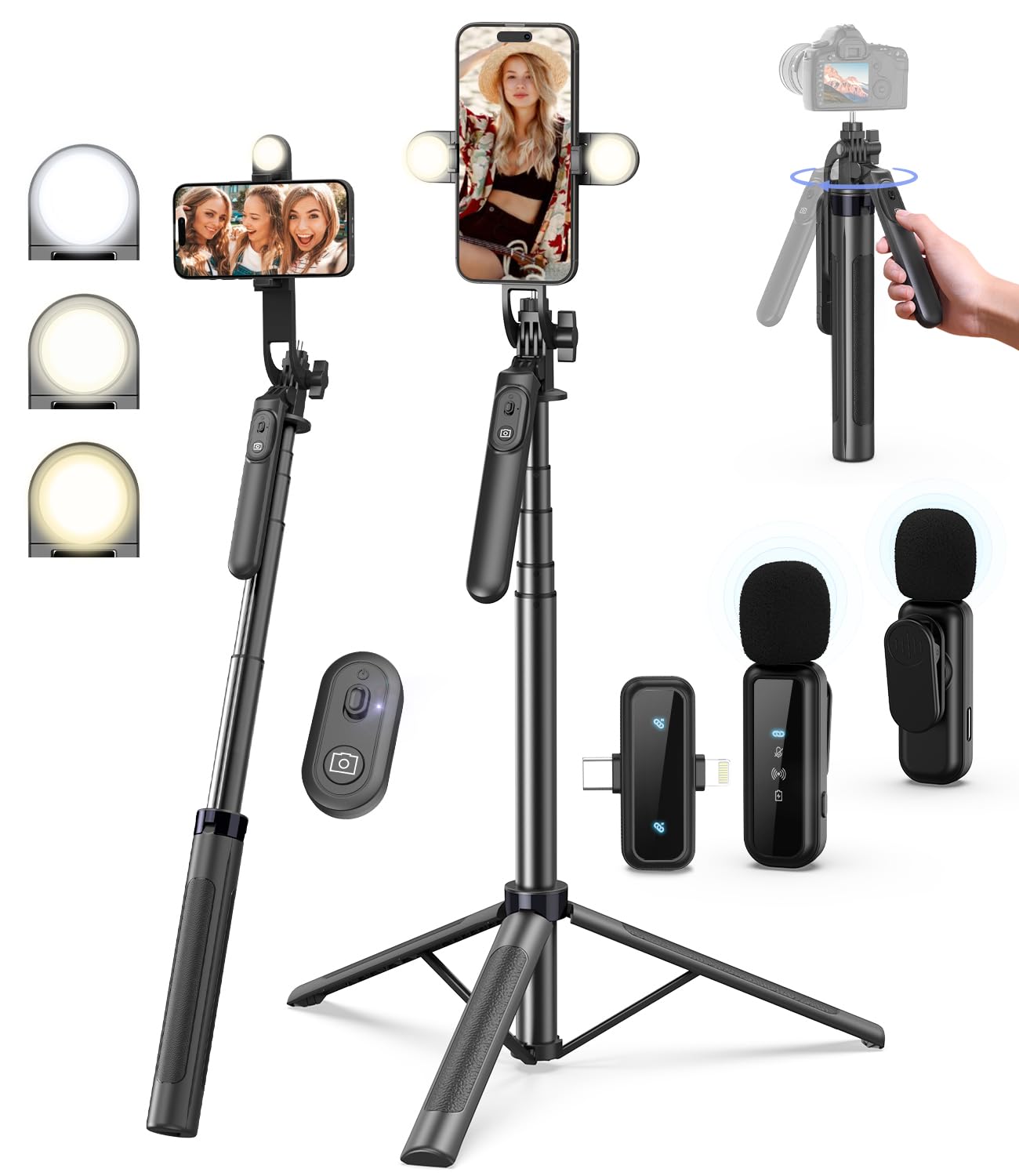
For creators who prefer a more tactile control over lighting while filming, the Yeaki Vlogging Kit offers detachable LED fill lights with three colour modes and adjustable brightness. These lights can be positioned to match the colour temperature of the primary LED source, reducing the need for extensive correction later.
The kit also includes a wireless microphone and a Bluetooth remote, enabling hands‑free operation during shoots. Reviewers rate it 4.5 out of 5, noting its versatility for TikTok, YouTube, and live streaming.
Using the Speed Editor for Efficient Workflow
Once the footage is loaded, switch to the colour‑grading workspace and enable the Speed Editor’s “Edit” mode. The dedicated push buttons allow instant toggling between primary correction, secondary correction, and key‑frame editing. The search dial functions as a high‑precision jog wheel, making it simple to isolate a single frame for detailed adjustment.
Because the Speed Editor is wired to DaVinci Resolve Studio, you can activate the built‑in colour‑grading panels such as the Curves, Color Wheels, and the new Color Warper. These tools provide granular control over lift, gamma, gain, and hue‑saturation curves, which are essential for balancing LED‑lit footage.
When working on a tight deadline, the keyboard shortcuts for copying grades between clips reduce repetitive tasks. For example, pressing the “Copy Grade” button followed by “Paste Grade” on the target clip replicates the entire node tree in seconds.
Color Grading Techniques for LED‑Lit Smartphone Footage
LED lighting often produces a clean, flat image that lacks the contrast of traditional cinema lighting. To add depth, start with a primary correction node that sets the overall exposure and white balance. Use the Lift, Gamma, and Gain controls to shape the shadows, mid‑tones, and highlights respectively.
Next, create a secondary node to isolate the skin tones. The Qualifier tool can target the hue range of human flesh, allowing you to increase saturation and warmth without affecting the background. This step is particularly effective when the LED source is neutral white.
For creative flair, introduce a third node that adds a subtle colour grade using a LUT (Lookup Table) designed for LED footage. Many LUTs are available for free, but a custom LUT can be built by adjusting the Color Wheels to achieve a teal‑orange cinematic look.
Finally, use the built‑in Power Windows to draw attention to the subject. A soft‑edge circular window around the subject’s face can create a vignette that mimics the fall‑off of professional lighting rigs.
Enhancing Audio and Lighting On‑Set
While colour grading refines visual aesthetics, clear audio and consistent lighting are equally important. The Yeaki Vlogging Kit includes a dual‑mic wireless system that records studio‑quality sound without the need for additional apps. Its 79‑foot transmission range ensures freedom of movement during dynamic shoots.
The kit’s detachable LED lights can be set to Warm, Cool, or Natural modes, providing flexibility for different skin tones and environments. Adjust the brightness using the three‑level control to prevent over‑exposure, especially when filming against reflective surfaces.
When editing, the wireless microphone’s audio track can be synced automatically in DaVinci Resolve, saving time compared to manual alignment. Use the built‑in Fairlight audio suite to apply noise reduction and equalisation, ensuring the final video sounds as polished as it looks.
Comparison / Selection Guide
| Feature | Blackmagic Speed Editor | Yeaki Vlogging Kit | TourBox NEO |
|---|---|---|---|
| Primary Purpose | Editing shortcut keyboard for DaVinci Resolve | All‑in‑one filming kit with lights, mic, and remote | Programmable controller for photo/video software |
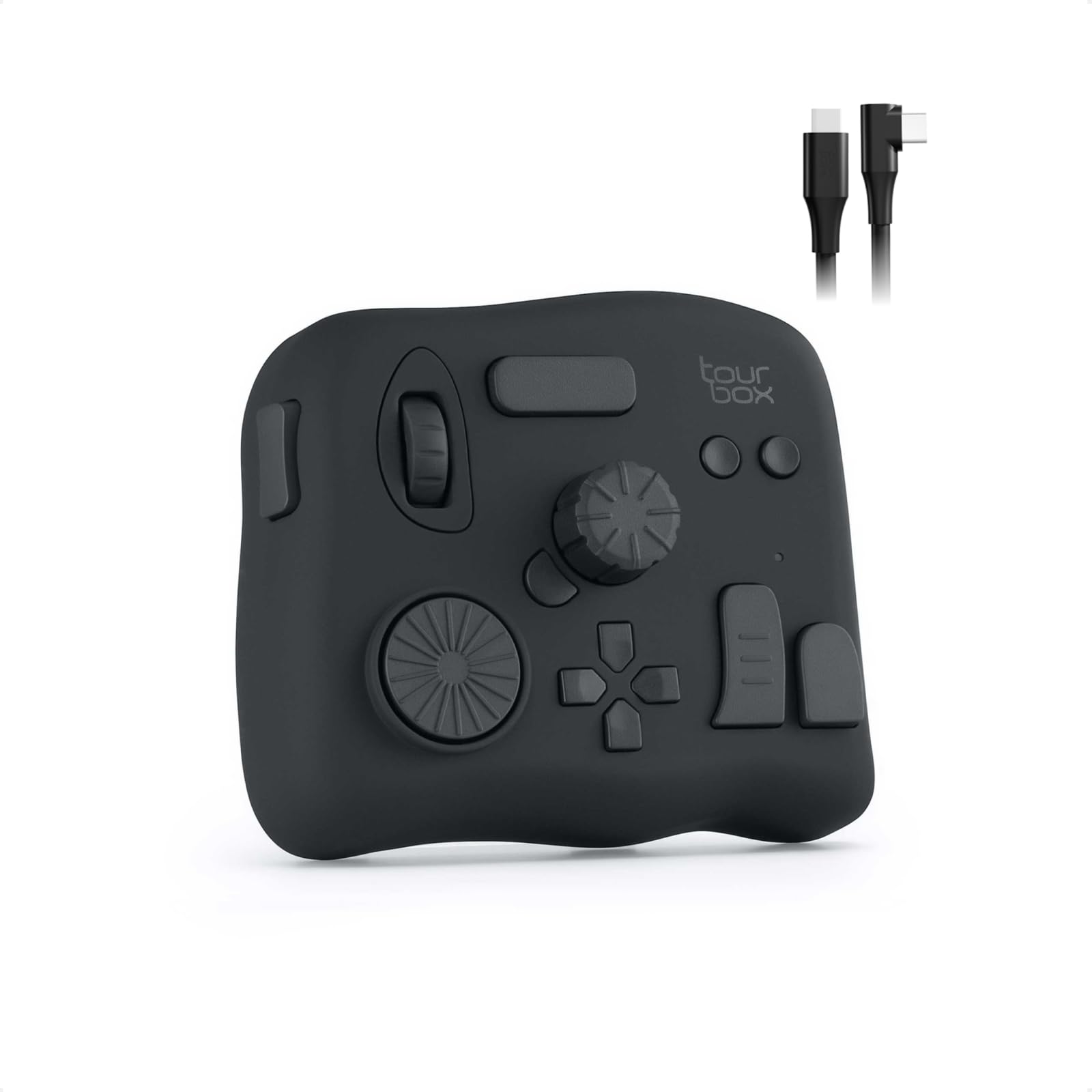
| Connectivity | Bluetooth & USB‑C (wired for zero latency) | Bluetooth remote, Type‑C charging, wireless mic (2.4 GHz) | Wired USB‑C, no battery required |
| Price (USD) | $435.00 | $29.99 | $169.00 |
| Average Rating | 4.7/5 (651 reviews) | 4.5/5 (345 reviews) | 4.6/5 (984 reviews) |
| Portability | Compact, battery‑powered for on‑the‑go editing | Lightweight tripod and foldable lights | Desktop‑bound, requires power source |
Choose the Speed Editor if the primary goal is to accelerate colour‑grading within DaVinci Resolve. Opt for the Yeaki Kit when you need a complete shooting solution that includes lighting and audio. Select the TourBox NEO if you work across multiple creative applications and prefer a programmable surface for both photo and video tasks.
Best Practices & Tips
- Calibrate your monitor using a hardware calibrator before grading to ensure colour accuracy.
- Record a colour chart or grey card at the start of each shoot; use it as a reference in Resolve’s Color Match tool.
- Maintain consistent LED colour temperature across all lighting units to minimise colour‑balance corrections.
- Utilise the Speed Editor’s search dial for precise frame‑by‑frame analysis of colour transitions.
- When using the Yeaki lights, start with the Natural mode and adjust brightness in 10 % increments to avoid clipping.
- Save your grading nodes as Power Grades; this allows reuse across multiple projects with similar lighting conditions.
- Export a LUT from your finished grade and apply it to future footage to maintain visual continuity.
Frequently Asked Questions
1. Do I need DaVinci Resolve Studio to use the Speed Editor?
No, the Speed Editor works with the free version of DaVinci Resolve, but the activation card included provides Studio features that enhance grading capabilities.
2. Can the Yeaki Vlogging Kit be used with Android phones?
Yes, the wireless mic receiver supports both Lightning and Type‑C connections, making it compatible with most Android devices.
3. Is the TourBox NEO compatible with Adobe Lightroom?
Absolutely; the device ships with preset profiles for Lightroom, allowing one‑handed adjustment of exposure, contrast, and colour sliders.
4. How do I avoid flicker when filming under LED lights?
Set your camera’s shutter speed to a multiple of the LED’s PWM frequency (commonly 1/50 s or 1/100 s) and enable electronic rolling shutter reduction if available.
5. What is the best way to sync audio from the Yeaki mic with video?
Both DaVinci Resolve and Premiere Pro can automatically sync audio based on waveform analysis; simply import the mic track and enable “Auto‑Sync by Waveform”.
6. Can I use the Speed Editor with software other than DaVinci Resolve?
The Speed Editor is primarily designed for Resolve, but custom key‑mapping can enable limited functionality in other applications.
7. Does the TourBox NEO support macro programming?
Yes, the accompanying software allows users to assign complex macro sequences to any button or dial.
Conclusion
Colour grading LED‑lit smartphone footage demands a blend of technical knowledge and efficient tools. By preparing the media, configuring a well‑equipped editing station, and applying systematic grading techniques, creators can achieve cinematic results without expensive camera rigs. The recommended hardware – the Blackmagic Speed Editor, Yeaki Vlogging Kit, and TourBox NEO – each address a specific stage of the workflow, from on‑set lighting to post‑production precision. Implement the best‑practice tips, and the final video will exhibit balanced colour, professional audio, and visual impact that engages viewers.
Products Featured in This Guide

Blackmagic Speed Editor
Price: $435.00
Rating: 4.7/5 (651 reviews)
Featured because it provides dedicated shortcuts and a built‑in search dial that dramatically speeds up DaVinci Resolve colour‑grading workflows.

Yeaki Vlogging Kit
Price: $29.99
Rating: 4.5/5 (345 reviews)
Featured because its portable LED lights, wireless microphone, and Bluetooth remote create a complete on‑set solution for consistent lighting and audio.

TourBox NEO
Price: $169.00
Rating: 4.6/5 (984 reviews)
Featured because it offers programmable controls for a wide range of creative software, enabling precise adjustments during colour grading and photo editing.