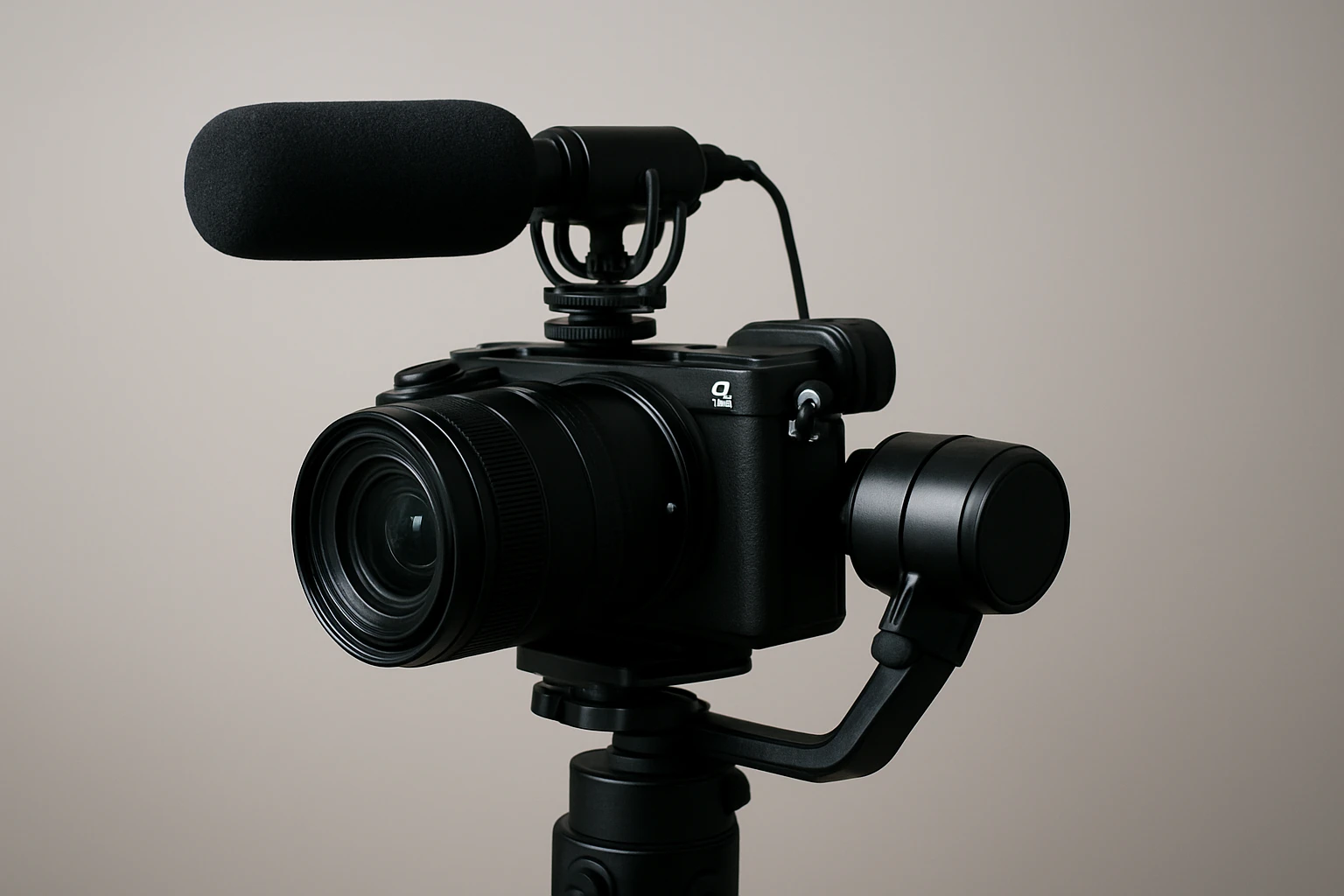
How to Integrate a Gimbal with an External Microphone: Step‑by‑Step Setup, Mounting & Audio Tips
Introduction
One who creates video content often discovers that smooth motion and clear audio are equally essential for professional results. This guide explains how to combine a handheld gimbal with an external microphone, providing a systematic workflow that improves both visual stability and sound fidelity. Readers will learn how to select appropriate accessories, mount the microphone securely, balance the system, and avoid common audio pitfalls. The information is valuable for vloggers, interviewers, and mobile journalists who require reliable equipment in dynamic environments.
Although the steps can be performed with basic tools, the recommended products streamline the process, reduce setup time, and enhance durability. By following the procedures outlined below, one can achieve broadcast‑quality footage without the need for a full‑size camera rig.
What You'll Need
- DJI Osmo Mobile 8 – Advanced 3‑axis phone gimbal with native tracking, lighting and 10‑hour battery.
- Frgyee Mic Adapter – 1/4" female to 5/8" male screw adapter for mounting microphones on tripod heads.
- External shotgun or lavalier microphone with a 3.5 mm TRS output.
- Smartphone with sufficient storage and a compatible recording app.
- Optional: Fantaseal Stabilizer Rig for DSLR or mirrorless cameras that require a larger mounting platform.
Step 1: Unbox and Prepare the Gimbal
Begin by removing the DJI Osmo Mobile 8 from its packaging. Verify that the battery is fully charged; the device offers up to ten hours of continuous operation, which is sufficient for most field shoots. Attach the magnetic phone clamp to the smartphone, ensuring that the device is centered and the camera lens aligns with the gimbal's balance point. The gimbal's built‑in extension rod can be folded away for compactness or extended to achieve higher angles without straining the wrist.
The Osmo Mobile 8 provides native tracking with audio and lighting, which can be activated via the DJI Mimo app. Although the app is no longer available on Google Play, one may download it directly from DJI's official website for full functionality. Activating tracking ensures that the gimbal follows the subject while the microphone captures consistent directional sound.
Price: $149.00. Rating: 4.6/5.0 based on 1,866 reviews. The high rating reflects reliable stabilization and user‑friendly controls, making it an ideal foundation for the audio integration workflow.
Step 2: Mount the Mic Adapter to the Gimbal
The Frgyee Mic Adapter converts the gimbal's tripod screw into a standard microphone mount. Screw the adapter's 5/8" male thread into the gimbal's built‑in tripod socket, then attach the 1/4" female side to the microphone's mounting base. The adapter is constructed from aluminum alloy, providing a robust, non‑slipping connection that will not deform under the weight of most shotgun microphones.
Because the adapter includes a knurled finish, one can tighten it by hand without the need for additional tools. This simplicity reduces the risk of over‑tightening, which could damage the gimbal's thread. The adapter costs $7.99 and holds a 4.7/5.0 rating from 91 reviewers, indicating consistent performance across a variety of setups.
When attaching the adapter, ensure that the microphone points forward and that the cable runs parallel to the gimbal's handle to avoid accidental tugging during motion.
Step 3: Connect the External Microphone
Plug the microphone's 3.5 mm TRS cable into the smartphone's audio input port or, if the device lacks a headphone jack, use a compatible USB‑C to 3.5 mm adapter. Verify that the recording app recognizes the external microphone; most professional apps display an audio level meter that confirms signal reception.
If the microphone includes a built‑in battery, turn it on and set the gain to a moderate level to prevent clipping. For shotgun microphones, aim the capsule toward the primary sound source while keeping the gimbal's camera axis aligned with the visual framing. This alignment minimizes the need for post‑production audio syncing.
Testing the audio before filming is crucial. Record a short test clip while moving the gimbal through typical motions; playback the clip to confirm that wind noise, handling noise, and motor hum are within acceptable limits.
Step 4: Balance and Calibrate the System
After the microphone is mounted, re‑balance the gimbal to compensate for the added weight. Use the Osmo Mobile 8's built‑in balancing guides, which display real‑time tilt and roll values. Adjust the phone clamp and microphone position until the gimbal remains level when released.
Next, perform a calibration routine via the DJI Mimo app. Calibration aligns the gimbal's motors with the new center of gravity, ensuring smooth pan and tilt movements. The calibration process typically takes less than two minutes and can be repeated whenever accessories are added or removed.
For users who operate larger cameras, the Fantaseal Stabilizer Rig offers a three‑shoe cage that can accommodate heavier lenses and additional audio accessories. Although not required for smartphone setups, the rig provides a stable platform for DSLR or mirrorless cameras, expanding the guide's applicability. The rig is priced at $36.91 and enjoys a 4.3/5.0 rating from 1,513 reviews, reflecting its versatility and lightweight construction.
Step 5: Record and Monitor Audio
With the system balanced, begin recording. Enable the gimbal's native tracking feature to keep the subject centered while the microphone captures consistent directional sound. Use headphones connected to the smartphone to monitor audio in real time; this practice helps identify unwanted background noise or wind interference.
During longer shoots, take advantage of the Osmo Mobile 8's 10‑hour battery and its ability to charge the smartphone simultaneously. This dual‑charging capability prevents power loss in remote locations such as festivals or outdoor interviews.
After each take, review both video and audio to ensure synchronization. The DJI Mimo app offers one‑tap editing tools that can trim clips and apply basic color correction, streamlining the post‑production workflow.
Tips & Pro Tips
- Use a windscreen or deadcat cover on the microphone when filming outdoors to reduce wind rumble.
- Keep the gimbal's motor noise low by enabling the silent mode in the DJI Mimo app, if available.
- When using a shotgun mic, position the capsule slightly above the camera lens to avoid capturing the gimbal's motor sounds.
- Store the Frgyee Mic Adapter in a small pouch to prevent loss; its compact size makes it easy to misplace.
- If the smartphone does not support external audio input, consider a portable audio recorder (e.g., Zoom H1n) and sync audio in post‑production.
Troubleshooting
Problem: Audio cuts out when the gimbal tilts.
Solution: Ensure that the microphone cable is not strained at the connection point. Use a short cable with a right‑angle connector to reduce movement.
Problem: Gimbal becomes unbalanced after mounting the mic.
Solution: Re‑adjust the phone clamp position and, if necessary, shift the microphone slightly forward or backward on the adapter to restore equilibrium.
Problem: Motor noise is audible in recordings.
Solution: Activate the silent mode, use a microphone with a built‑in low‑cut filter, or place a small piece of foam between the mic and the gimbal to dampen vibrations.
Conclusion
Integrating an external microphone with a handheld gimbal enhances the overall production value by delivering smooth visuals and clear, directional audio. By following the five steps—preparing the gimbal, mounting the adapter, connecting the microphone, balancing the system, and monitoring during recording—one can achieve professional‑grade results without extensive equipment. The recommended tools, including the DJI Osmo Mobile 8, Frgyee Mic Adapter, and optionally the Fantaseal Stabilizer Rig, provide reliable performance and simplify the workflow. Continued practice and attention to audio‑visual details will further refine one's craft.
Products Mentioned in This Guide
Frequently Asked Questions
What type of external microphone is best for use with a phone gimbal?
A lightweight shotgun or lavalier mic with a 3.5mm TRS or USB‑C connector works best, keeping weight low and fitting standard gimbal mounts.
How should I mount the microphone on the gimbal to maintain balance?
Attach the mic to the gimbal’s accessory shoe or a small counterweight arm, then adjust the gimbal’s tilt and roll until the system stays level without motor strain.
Do I need a power source for the external mic when using a gimbal?
Most portable mics draw power from the phone via the audio jack or USB‑C, so a separate battery is rarely required unless using a high‑gain powered mic.
Can I use the gimbal’s built‑in stabilizer while recording audio?
Yes, the stabilizer works independently of audio; just ensure the mic cable is secured to avoid tugging that could affect balance.
What common audio issues should I watch for when filming with a gimbal?
Watch for wind noise, cable rattles, and microphone handling noise; use windshields, clip cables neatly, and test levels before shooting.