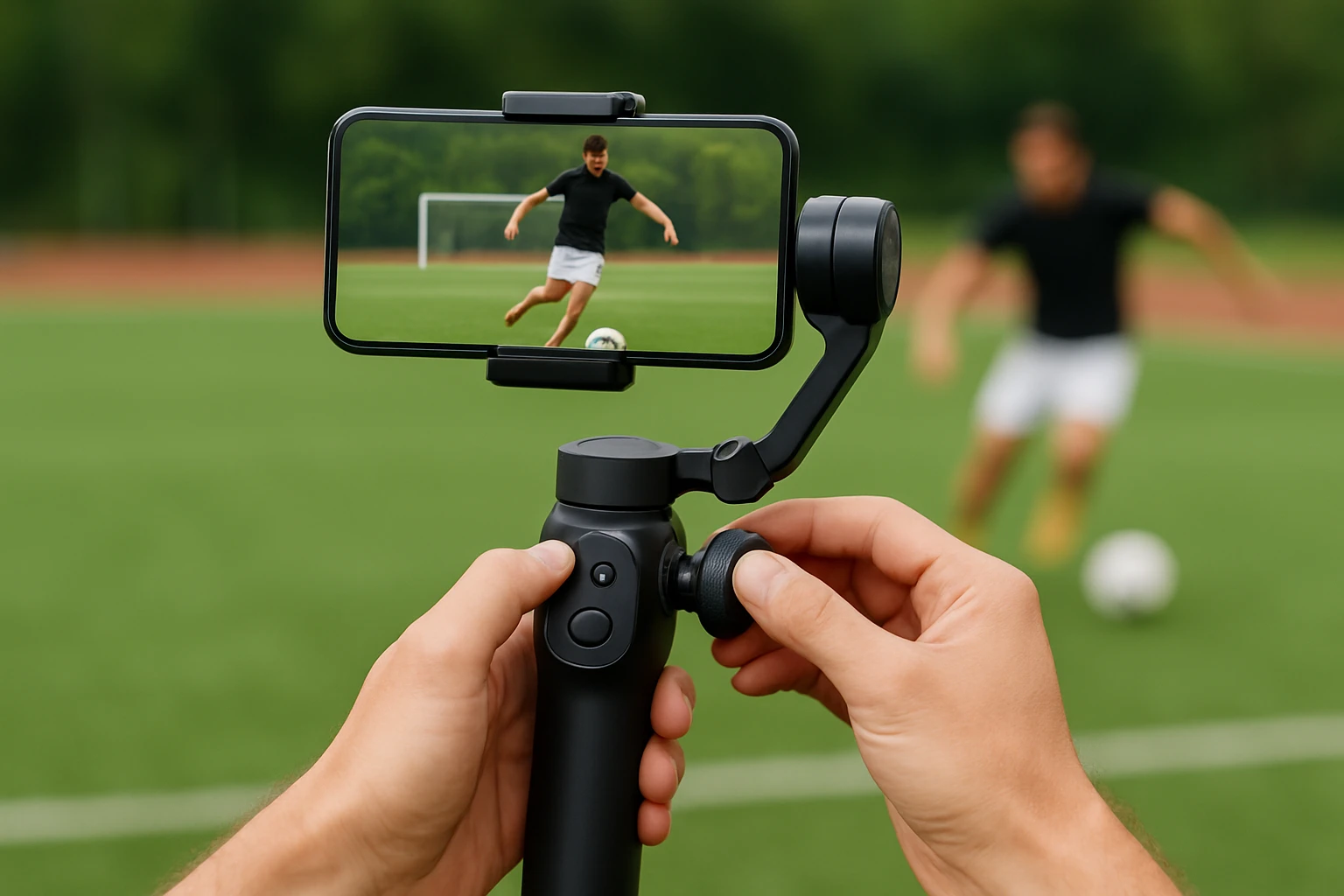

How to Optimize Gimbal Motor Settings for Smooth Smartphone Sports Filming: Pro Tips to Eliminate Jitter and Capture Crisp Action Footage
Introduction
Filming high‑speed sports with a smartphone demands a stable platform, precise motor control, and an understanding of how vibration affects image quality. This guide explains how to calibrate gimbal motor settings, reduce jitter, and achieve professional‑grade footage without requiring expensive equipment. Readers will learn why motor tuning matters, which adjustments produce the smoothest results, and how to integrate supportive accessories for optimal performance. By the end of the article, one will possess a reliable workflow that transforms ordinary smartphone recordings into cinematic action reels.
What You'll Need
- Smartphone compatible gimbal (three‑axis preferred)
- Mobile device with gimbal control app installed
- Fully charged batteries for both smartphone and gimbal
- Secure mounting solution for hands‑free shooting, such as the PellKing Chest Strap Phone Mount Kit
- Small wrench included in the mount kit for fine‑tuning screws
- Micro‑fiber cleaning cloth
Step 1: Prepare the Smartphone and Gimbal
Begin by cleaning the smartphone lens and the gimbal’s motor housings with a micro‑fiber cloth to remove dust that could interfere with sensor readings. Install the latest firmware on the gimbal using the manufacturer’s mobile app; firmware updates often contain motor‑control improvements that enhance stability. Secure the smartphone in the gimbal’s clamp, ensuring that the device sits level and that the weight distribution is balanced. Verify that the gimbal is powered on and that the app displays the current motor status, battery level, and calibration options.
Step 2: Calibrate the Gimbal Sensors
Calibration aligns the gimbal’s internal gyroscope and accelerometer with the earth’s gravity vector, which is essential for smooth motion tracking. In the app, select the "Calibration" menu and follow the on‑screen prompts: place the gimbal on a flat surface, keep the smartphone upright, and allow the device to complete the automatic routine. After calibration, perform a quick test by rotating the gimbal slowly; the footage should remain level without sudden jumps. If jitter persists, repeat the calibration process in a different environment to rule out magnetic interference.
Step 3: Adjust Motor Strength Settings
Motor strength determines how aggressively the gimbal compensates for motion; too high a setting can cause motor hunting, while too low a setting may allow unwanted shake. Access the "Motor Settings" section of the app and locate the sliders for each axis (pan, tilt, roll). For high‑speed sports such as mountain biking or snowboarding, set the pan and tilt strength to 80‑90 % of the maximum and the roll strength to 70‑80 % to maintain responsiveness without overshooting. Document the chosen values in a notebook for future reference when filming in similar conditions.
Step 4: Configure the Follow‑Mode and Dead‑Band
Follow‑mode controls how the gimbal mirrors the operator’s hand movements; a tighter dead‑band reduces minor tremors but may feel less natural. Set the dead‑band to a low value (e.g., 2‑3 degrees) for sports that require rapid direction changes, such as motocross. Enable "Sport Mode" if the app provides it; this mode typically raises motor torque and reduces latency, which is advantageous for capturing fast action. Test the configuration by walking while filming; the footage should exhibit fluid motion with minimal lag.
Step 5: Secure the Smartphone Using a Chest Strap
While handheld shooting offers flexibility, a chest strap provides a stable point of reference that isolates the smartphone from arm vibrations. The PellKing Chest Strap Phone Mount Kit includes a quick‑release chest harness, a head‑strap option, and a 360° rotation phone holder that locks the device firmly in place. Its construction from PC+ABS plastics and silicone ensures durability while the adjustable J‑hook buckles accommodate users weighing 130‑250 lb. By attaching the gimbal to the chest strap, one can maintain a steady line of sight, reduce hand fatigue, and achieve a true first‑person perspective that enhances immersion.
Step 6: Fine‑Tune the Mount Using the Included Wrench
After installing the phone holder on the chest strap, use the small wrench provided in the kit to tighten the long screw that secures the holder. This step prevents the phone from sliding during vigorous movements such as paddle boarding or wakeboarding. Turn the screw clockwise until it is snug; do not use fingers, as over‑tightening could strip the threads. Verify that the phone remains immobile by gently shaking the harness; the device should stay firmly attached.
Step 7: Test the Complete Setup on a Low‑Risk Activity
Before committing to a high‑stakes shoot, perform a short test run on a low‑risk activity such as a leisurely bike ride. Record a one‑minute clip while maintaining the gimbal’s default motor settings, then review the footage on a computer screen. Look for any residual jitter, motor noise, or frame drops. If issues are observed, return to Step 3 or Step 4 to adjust motor strength or dead‑band values accordingly.
Tips & Pro Tips
- Always start with a fully charged battery; low voltage can cause motor lag and increase jitter.
- When filming in cold environments, allow the gimbal to warm up for five minutes to prevent motor stiffness.
- Use the gimbal’s built‑in "Anti‑Shake" filter if the app offers it; this feature applies a software smoothing algorithm that complements hardware adjustments.
- For ultra‑smooth POV shots, combine the chest strap with a lightweight action‑camera mount on the head strap; this dual‑mount approach captures both chest‑level and eye‑level perspectives.
- Keep the smartphone’s background apps closed to reduce processor load, which can affect frame rates during recording.
Troubleshooting
| Problem | Possible Cause | Solution |
|---|---|---|
| Motor humming during steady shots | Excessive motor strength | Reduce strength sliders by 10‑15 % and re‑test. |
| Phone slipping from holder | Improper screw torque | Use the included wrench to tighten the long screw securely. |
| Sudden jumps after calibration | Magnetic interference | Perform calibration away from metal structures or electronic devices. |
| Battery drain faster than expected | High motor torque | Enable "Power‑Saving" mode if available, and lower motor strength slightly. |
Conclusion
Optimizing gimbal motor settings is a systematic process that balances hardware calibration, software configuration, and accessory integration. By following the steps outlined above, one can eliminate jitter, maintain consistent framing, and capture crisp action footage even in demanding sports environments. The inclusion of the PellKing Chest Strap Phone Mount Kit further enhances stability, allowing creators to focus on composition rather than equipment limitations. Apply these techniques to future shoots, and one will consistently produce professional‑quality video that engages audiences.
Products Mentioned in This Guide

Frequently Asked Questions
Why should I calibrate my gimbal motor settings before filming sports?
Calibration syncs the motors with your smartphone’s weight and movement range, preventing drift and reducing jitter for smoother action shots.
How do I adjust motor strength to eliminate jitter without over‑stabilizing?
Set the motor strength to medium‑high for fast movements and lower it for slower pans; most apps let you preview the effect in real‑time.
What battery considerations affect gimbal performance during long shoots?
Fully charge both the gimbal and phone, and carry spare batteries or a power bank, because low voltage can cause motor lag and increased shake.
Can accessories like a chest mount improve gimbal stability for high‑speed activities?
Yes, a chest or body mount reduces hand tremors and keeps the gimbal’s center of gravity steady, resulting in cleaner footage.
Is there a recommended app setting for smoothing smartphone video on a gimbal?
Enable the ‘SmoothTrack’ or ‘Dynamic Stabilization’ mode in the gimbal’s control app and fine‑tune the response curve to match the sport’s speed.