
How to Prevent Smartphone Overheating While Using Lights and a Gimbal: Essential Mobile Filmmaking Tips
Introduction
Smartphone filmmakers often encounter overheating when combining powerful LED lights with a gimbal stabilizer. Overheating can cause frame drops, reduced image quality, and even automatic shutdowns, which jeopardize the production schedule. This guide explains how to manage thermal load, optimize settings, and use accessories that mitigate heat buildup. By following these steps, creators will achieve stable, high‑quality footage without compromising device performance.
What You’ll Need
- A smartphone with a capable camera (iPhone or Android model).
- A gimbal stabilizer compatible with your phone.
- External lighting – preferably a ring light with adjustable brightness.
- Optional accessories such as a tripod, remote, and external microphone.
- Cooling aids – a small fan or heat‑dissipating case.
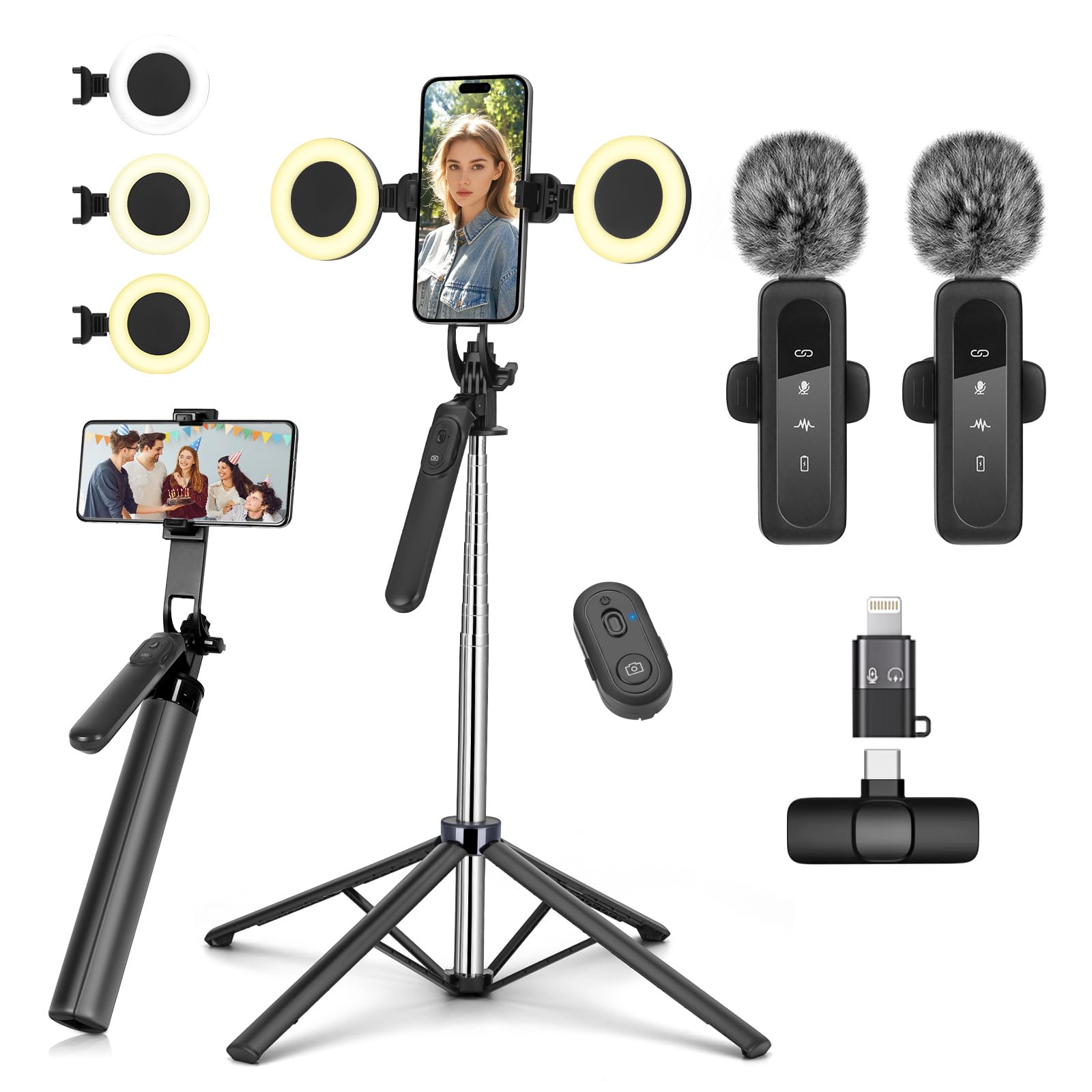
Below are two recommended products that satisfy many of these requirements while remaining budget‑friendly.
Step 1: Choose a Light That Balances Brightness and Heat Output
The first source of heat is the illumination source. A high‑intensity LED ring light can generate significant warmth, especially when set to maximum output. Selecting a light with adjustable brightness and color temperature allows you to lower the intensity to the minimum level that still provides adequate exposure, thereby reducing thermal stress on both the light and the phone.
The Weilisi Ring Light offers ten brightness levels ranging from 10% to 100% and three color temperature options (3000‑6000K). Priced at $38.99 with a 4.5‑star rating from 1,019 reviewers, it provides a full‑screen lighting panel that distributes light evenly, minimizing hot spots that could otherwise increase phone temperature. Its 69‑inch aluminum tripod can be positioned to keep the light at a comfortable distance from the device, further lowering heat transfer.
Why this product is useful: the dimmable feature lets you match lighting to ambient conditions, and the remote control enables adjustments without touching the phone, preventing additional heat from handling. In contrast, fixed‑intensity lights force you to increase ISO or shutter speed, which can cause the sensor to work harder and generate more heat.
Step 2: Mount the Phone Securely on the Gimbal While Allowing Airflow
After lighting is set, attach your smartphone to the gimbal. Ensure the mounting plate does not completely enclose the device; leave space for air to circulate around the rear camera module and battery. Some gimbals have built‑in ventilation slots; if yours does not, consider using a thin heat‑dissipating pad between the phone and the mount.
While the Weilisi Ring Light includes a 1/4" screw mount, it is primarily for camera accessories. For the gimbal itself, use the phone’s built‑in clip, but keep the ring light at a distance of at least 12‑18 inches. This separation reduces direct radiant heat reaching the phone’s rear panel.
Why spacing matters: LED lights emit infrared radiation that can raise the temperature of nearby surfaces. By maintaining a gap, you allow the phone’s internal cooling system—usually passive— to dissipate heat more efficiently.
Step 3: Power Management – Reduce Battery Load
The smartphone’s battery is a major heat source during intensive video capture. Disable unnecessary background apps, turn off Bluetooth and Wi‑Fi if not needed, and lower screen brightness. If your device supports a “performance mode,” switch to a balanced or power‑saving mode to limit CPU throttling.
When using the YUANRAN Vlogging Kit, you can connect an external microphone that draws power from the phone via the Type‑C/Lightning receiver. This reduces the need for the phone’s internal microphone circuitry, marginally lowering power consumption.
Why this product helps: the kit’s wireless mic operates independently, allowing you to mute the phone’s built‑in mic and conserve energy. At $29.99 and a 4.5‑star rating from 58 reviewers, it offers a cost‑effective audio solution without adding heat‑generating components.
Step 4: Use External Power Sources When Possible
If you anticipate extended shooting sessions, connect a portable power bank to your phone via a USB‑C cable. Many power banks include built‑in voltage regulation that supplies a steady current, preventing the phone’s battery from cycling rapidly, which can generate heat.
Pair the power bank with the YUANRAN Vlogging Kit’s dual wireless microphones, which have a separate rechargeable receiver. This arrangement ensures that both audio and video power demands are met without overtaxing the phone’s internal battery.
Why external power is advantageous: a stable external source reduces the internal charging cycles that occur when the phone draws power from its battery while simultaneously powering the screen and camera. Fewer cycles translate to lower thermal output.
Step 5: Implement Physical Cooling Aids
Place a small, USB‑powered fan near the phone’s rear panel. Aim the airflow toward the camera module and battery area. Alternatively, use a silicone heat‑dissipating case that spreads heat across a larger surface.
When using the Weilisi Ring Light, you can attach the fan to the tripod’s side rail using a zip‑tie, keeping the setup tidy. Ensure the fan’s power cable does not interfere with the gimbal’s balance.
Why a fan works: forced convection moves hot air away from the device faster than natural convection, maintaining a lower steady‑state temperature during prolonged recording.
Tips & Pro Tips
- Start recording at a lower resolution (1080p) and increase to 4K only when necessary; higher resolutions demand more processing power.
- Enable the phone’s “thermal throttling” warning if available, so you receive alerts before overheating becomes critical.
- Take short breaks every 10‑15 minutes to allow the device to cool, especially when shooting in direct sunlight.
- Use the remote control of the Weilisi Ring Light to adjust brightness without touching the phone, preserving a cooler grip.
- When using the YUANRAN Vlogging Kit, position the wireless mic’s receiver on the opposite side of the phone to avoid concentrating heat in one area.
Troubleshooting
Problem: Phone shuts down after a few minutes of recording.
Solution: Reduce the ring light’s brightness to 30‑40% and switch the color temperature to a cooler setting (around 5000K). Verify that the fan is operating and that the power bank is connected.
Problem: Audio distortion when using the wireless mic.
Solution: Ensure the mic’s receiver is within its 79‑foot transmission range and that there are no physical obstructions. If distortion persists, move the receiver closer to the phone’s microphone port.
Conclusion
Preventing smartphone overheating while using lights and a gimbal requires a combination of proper equipment selection, power management, and physical cooling strategies. By adjusting light intensity, maintaining airflow, using external power, and employing accessories such as the Weilisi Ring Light and the YUANRAN Vlogging Kit, creators can film longer sessions with consistent image quality. Apply the tips and troubleshooting steps outlined above, and you will experience smoother, cooler productions on your mobile device.
Products Mentioned in This Guide
Frequently Asked Questions
Why does using LED lights with a gimbal cause my smartphone to overheat?
LED lights add extra power draw and generate heat, while the gimbal limits airflow around the phone, increasing thermal buildup.
What are the best lighting settings to reduce overheating while filming?
Use the lowest brightness that still provides proper exposure and enable any built‑in dimming or pulse‑width modulation features.
How can a heat‑dissipating case help prevent shutdowns during shoots?
A case with metal fins or a built‑in fan spreads heat away from the device, keeping internal temperatures below critical thresholds.
Is it safe to attach an external fan to the smartphone while using a gimbal?
Yes, a small, battery‑powered fan positioned to blow across the phone’s rear can lower temperature without adding significant weight.
What quick steps should I take if my phone starts to overheat mid‑shoot?
Reduce light intensity, pause filming to let the device cool, and if possible, switch to a lower‑resolution mode or enable a cooling case.