Introduction
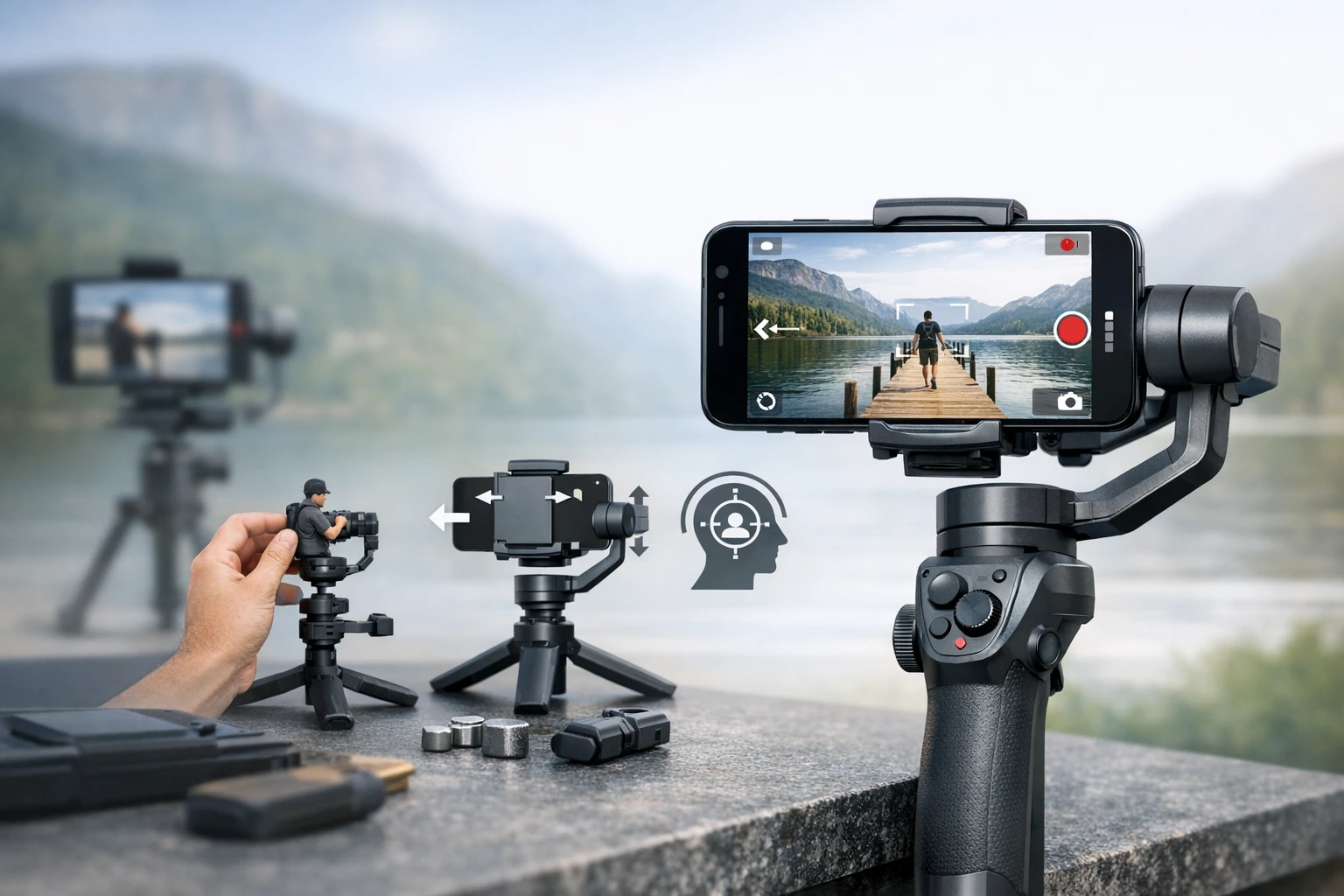
This guide will teach the reader how to produce smooth, cinematic footage using a smartphone gimbal. It explains why stabilization matters, how to prepare equipment, and how to execute professional‑grade movements. By following each step, the reader will gain confidence in creating content for platforms such as TikTok, YouTube, or personal archives. The information is valuable for creators who seek consistent results without investing in expensive camera rigs.
What You'll Need
- Smartphone compatible with the gimbal (iOS or Android)
- Three‑axis gimbal stabilizer (recommended: AOCHUAN XE AI Gimbal)
- Optional extension rod or selfie stick for high‑angle shots
- Charging cable and spare battery for extended sessions
- Tripod or flat surface for static shots
Step 1: Unbox and Inspect Your Gimbal
The first action is to remove the device from its packaging and verify that all components are present. The AOCHUAN XE AI Gimbal arrives with a mini tripod, USB‑C charging cable, and an AI vision tracker module. Confirm that the motor arms move freely and that the battery indicator lights up when connected. A well‑packed unit reduces the risk of missing accessories during field work.
If the user prefers a lighter solution, the Irianu 1‑Axis Gimbal Stick offers a compact alternative that doubles as a selfie stick and tripod. Its 2600 mAh battery is not applicable, but its lightweight aluminum rod (0.49 lb) makes it ideal for travel.
Step 2: Balance the Smartphone on the Gimbal
Balancing is the foundation of smooth motion; an unbalanced phone forces the motors to work harder, causing jitter and reduced battery life. Begin by sliding the phone into the clamp, ensuring the screen faces forward. Adjust the sliding rail until the phone remains level when the gimbal is powered off. The AOCHUAN XE AI Gimbal features a 3‑axis motor with 8.0 Gen Stabilization, which tolerates minor imbalance, yet proper setup maximizes the 10‑hour battery runtime.
The DJI Osmo Mobile 6, another excellent option, includes an intuitive balancing guide displayed on its status panel. Although its price is $89.00, the built‑in ActiveTrack 6.0 provides superior subject tracking once balance is achieved.
Step 3: Power On and Select the Appropriate Mode
After balance, turn on the gimbal by pressing the power button. The AOCHUAN XE AI Gimbal presents four modes: F (push‑pull), POV (tilt‑angle), DM (inception), and GO (quick transition). Choose GO for dynamic sports footage, or POV for vlog‑style vertical shots. Each mode adjusts motor response curves to suit the intended motion.
If the creator desires automatic face tracking without a dedicated app, the AI Tracking Module of the AOCHUAN device operates independently, leveraging vision sensors to keep the subject centered. This feature is especially useful for solo creators who cannot operate a handheld remote.
Step 4: Connect to the Companion App (Optional)
While the AOCHUAN gimbal functions without software, the companion app unlocks advanced features such as time‑lapse, panorama, and slow‑motion modes. Install the app via the provided QR code, then pair the device using Bluetooth. The DJI Osmo Mobile 6 relies heavily on the DJI Mimo app; its Remote Control With Watch feature allows the user to adjust angles from an Apple Watch, enhancing hands‑free operation.
When using the app, calibrate the gimbal by following on‑screen prompts. Calibration aligns the motor sensors, ensuring that the AI algorithms receive accurate positional data. Proper calibration reduces drift during extended shoots.
Step 5: Practice Fundamental Movements
Before filming a final scene, rehearse basic motions: pans, tilts, and tracking walks. Hold the gimbal with both hands—one on the grip, the other on the side wheel—to maintain stability. For the AOCHUAN model, the side wheel provides tactile feedback for smooth zoom adjustments. Execute a slow 180‑degree pan, observing the motor response; the footage should remain steady without sudden jerks.
Utilize the built‑in extension rod of the DJI Osmo Mobile 6 to achieve higher angles or selfie perspectives. Extend the rod, then lock it securely before moving. This design adds versatility without increasing the device’s footprint.
Step 6: Record Your First Clip
With the mode selected and movements practiced, press the record button on the gimbal or use the app’s on‑screen capture control. For AI‑tracked subjects, position the phone so the face is within the central frame; the AI module will maintain focus as the subject moves. Capture at least 30 seconds of footage to evaluate stabilization in post‑production.
After recording, review the clip on the smartphone. If minor shake persists, revisit the balancing step or adjust the motor gain in the app settings. The AOCHUAN XE AI Gimbal allows gain adjustment via its menu, providing fine‑tuning for heavier phones such as the iPhone 15 Pro Max.
Tips & Pro Tips
- Use the mini tripod included with the AOCHUAN gimbal for static shots; this eliminates hand fatigue during long interviews.
- Enable the “Battery Saver” mode on DJI Osmo Mobile 6 when filming for extended periods; it reduces motor power while maintaining acceptable smoothness.
- When shooting in low‑light environments, increase the AI tracking sensitivity in the AOCHUAN app to prevent loss of the subject.
- Keep firmware updated; both AOCHUAN and DJI release performance enhancements that improve motor response and tracking accuracy.
- For vloggers who frequently switch between portrait and landscape, use the double‑click switch button on the AOCHUAN gimbal to toggle orientation instantly.
Troubleshooting
Problem: The gimbal vibrates or produces a humming noise.
Solution: Verify that the phone is properly balanced; an unbalanced load forces the motors to correct constantly, creating audible vibration. Re‑center the phone and ensure the clamp is tightened.
Problem: AI tracking loses the subject.
Solution: Increase lighting or enable the “Low‑Light Boost” setting in the AOCHUAN app. Ensure the subject’s face is not obstructed and that the background does not contain competing motion.
Problem: Battery drains rapidly.
Solution: Close background apps on the smartphone, lower the motor gain, and consider using the DJI Osmo Mobile 6’s power‑saving mode if filming outdoors for several hours.
Conclusion
By following the steps outlined in this guide, the reader can achieve professional‑grade stabilization for smartphone video. Proper unboxing, balancing, mode selection, and practice are essential components of a reliable workflow. The recommended tools—AOCHUAN XE AI Gimbal, DJI Osmo Mobile 6, and Irianu 1‑Axis Gimbal Stick—provide a range of features suited to different budgets and shooting styles. With these techniques, creators can produce cinematic footage that engages audiences across social platforms.
Products Mentioned in This Guide
Frequently Asked Questions
Why is a three‑axis gimbal better than handheld shooting for smartphone video?
A three‑axis gimbal isolates pitch, roll, and yaw, eliminating shake and producing smooth, cinematic motion that handheld shooting can't match.
What smartphone features are required for compatibility with the AOCHUAN XE AI Gimbal?
Any iOS or Android phone with Bluetooth and a USB‑C or Lightning port for power and optional firmware updates will work.
How do I balance my phone on the gimbal for the first time?
Place the phone on the mount, adjust the sliding arms until the gimbal stays level when powered on, then tighten the clamps.
Can I use an extension rod with the gimbal without affecting stabilization?
Yes, an extension rod or selfie stick can be attached to the gimbal’s top mount, but keep movements slow to maintain the gimbal’s balance.
What are the best practices for battery management during long shoots?
Charge the gimbal fully, carry a spare battery or power bank, and turn off AI tracking when not needed to extend runtime.