Introduction
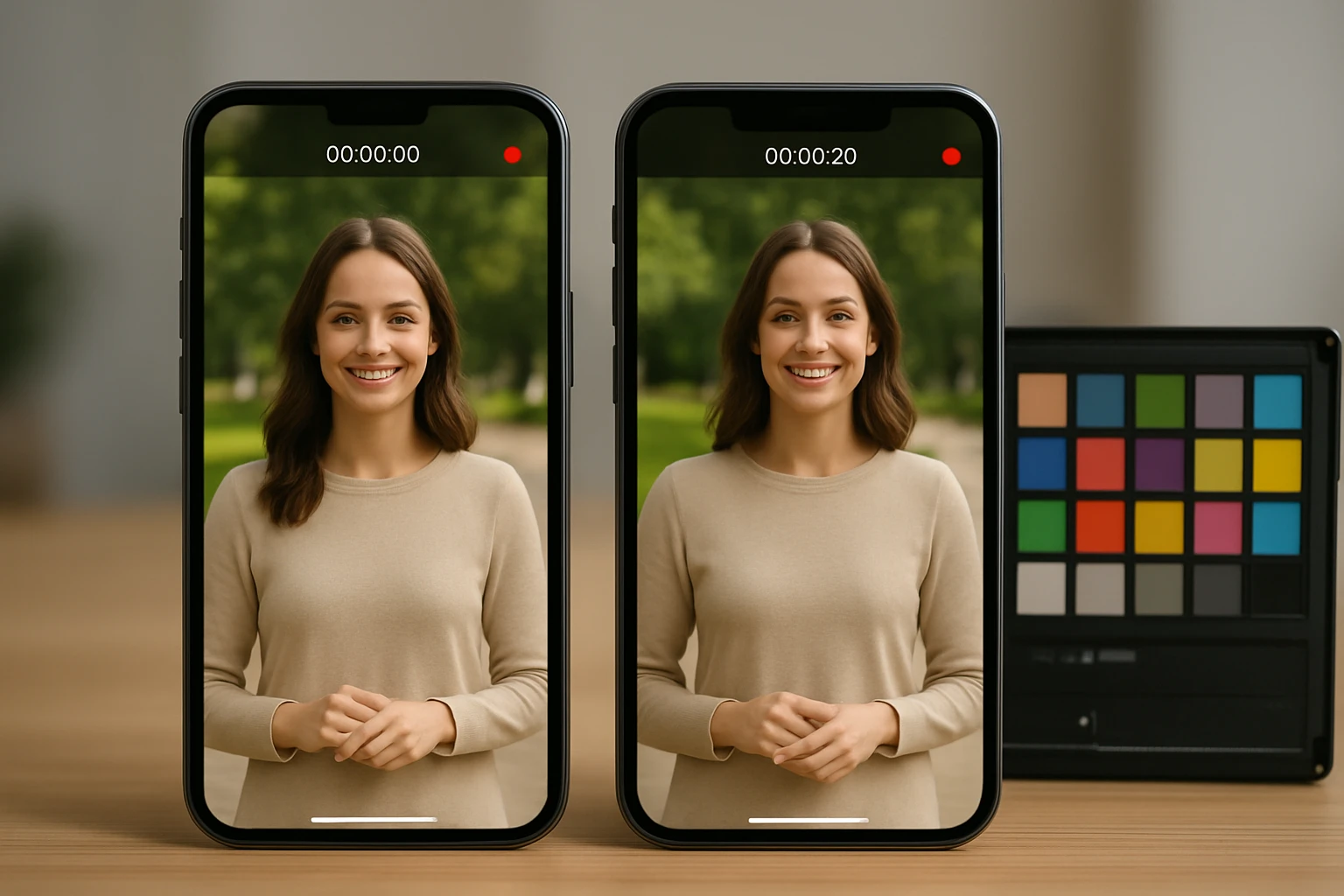
Creating video content on multiple smartphones often results in inconsistent colors, which can undermine the professional appearance of the final product. This guide explains how to achieve uniform color reproduction by matching color profiles across different devices. Readers will learn practical steps, essential tools, and troubleshooting techniques to ensure that footage captured on any phone looks cohesive when edited together. By following the instructions, one can maintain brand consistency and visual fidelity without extensive post‑production effort.
What You’ll Need
- Keywing 3-in-1 Phone Camera Lens Kit – $18.99, rating 4.0/5 (4,720 reviews)
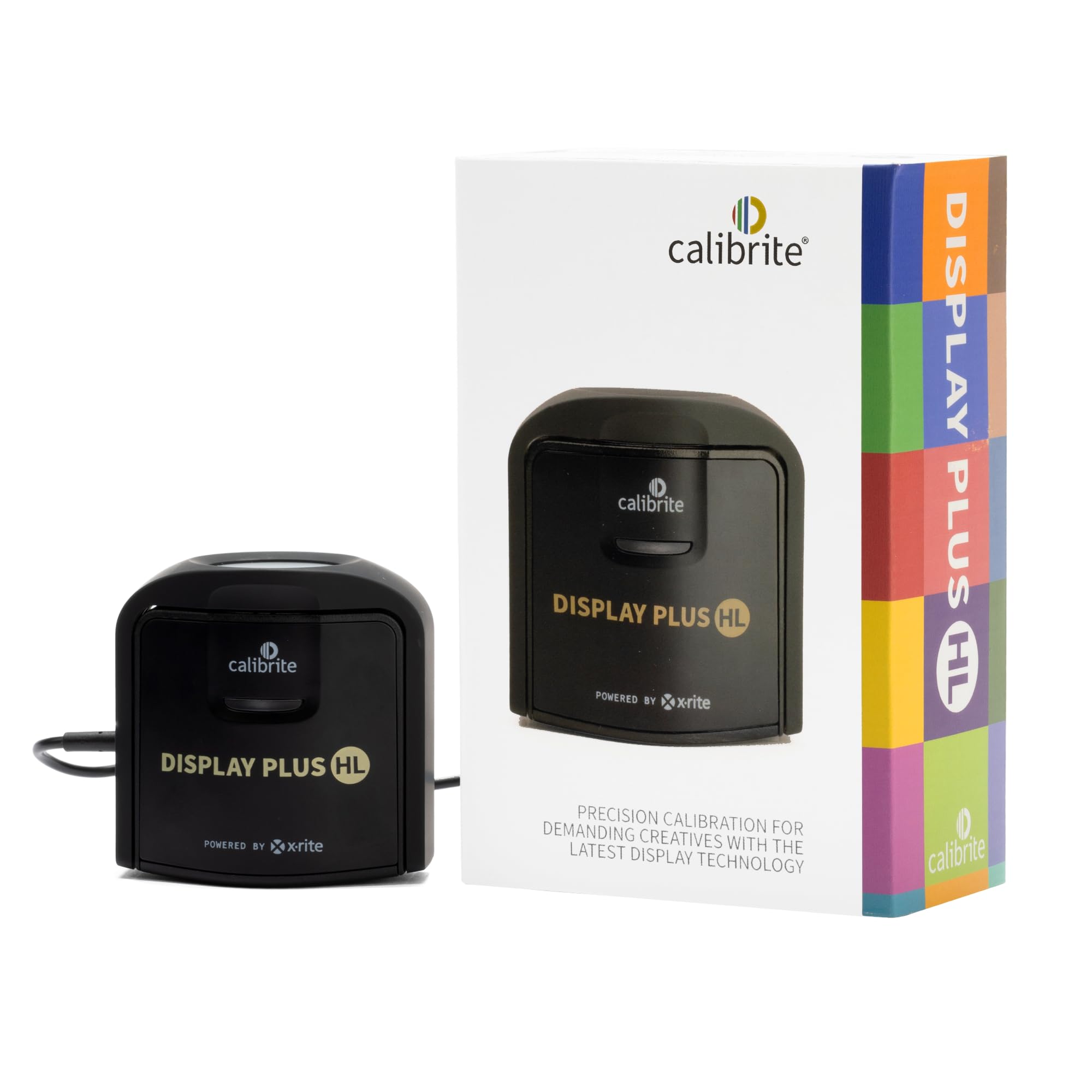
- Calibrite Display Plus HL Colorimeter – $259.00, rating 4.4/5 (209 reviews)
- Computer with USB‑C port and internet access
- Video editing software that supports ICC or LUT import (e.g., DaVinci Resolve, Adobe Premiere Pro)
- External storage for transferring footage
Step 1: Capture Video with Consistent Optical Settings
Begin by attaching the appropriate lens from the Keywing 3-in-1 Phone Camera Lens Kit to each smartphone that will be used for recording. The 120° wide‑angle lens expands the field of view, ensuring that each device captures a similar composition, while the 20× macro lens can be employed for close‑up details without changing the camera’s internal settings. Select a fixed focal length and disable automatic exposure and white‑balance in the phone’s camera app to prevent dynamic shifts during shooting. By standardising the optical path, one reduces the variables that later require colour‑profile correction.
- Features: three interchangeable lenses (198° fisheye, 120° wide, 20× macro), universal 3.6 cm clip, aluminum shell for durability.
- Price: $18.99
- Rating: 4.0/5 from 4,720 reviews
Step 2: Transfer Footage to a Calibrated Workspace
After recording, copy the video files to a computer using a reliable USB‑C cable or a high‑speed card reader. Organise the clips in folders labelled by device model to simplify later identification. Ensure that the storage medium supports the video codec and resolution used during capture to avoid transcoding artefacts. It is advisable to perform this transfer on a machine that has been calibrated, as uncalibrated monitors can introduce visual bias when evaluating colour consistency.
Step 3: Calibrate Your Reference Monitor
Use the Calibrite Display Plus HL Colorimeter to create an accurate colour profile for the monitor that will serve as the reference during editing. Attach the sensor to the screen’s 1/4" mount thread, select the appropriate preset for the display type (LCD, Mini‑LED, OLED), and run the calibration sequence in Calibrite PROFILER software. The device measures luminance up to 10,000 nits, making it suitable for HDR workflows, and it validates the result with tools such as Quick Check and Uniformity Check. A calibrated monitor guarantees that the colour adjustments you apply are based on objective measurements rather than subjective perception.
- Features: HL sensor up to 10,000 nits, USB‑C with adapter, built‑in mount thread, PROFILER software for Mac and Windows.
- Price: $259.00
- Rating: 4.4/5 from 209 reviews
Step 4: Generate Device‑Specific ICC Profiles
With the reference monitor calibrated, import each phone’s footage into the editing software and use the colour‑matching tools to generate an ICC profile for each device. In DaVinci Resolve, navigate to the Color Management settings, select “Camera RAW” as the input, and apply a custom LUT derived from the colour‑checker chart filmed with the same lens setup. Export the resulting ICC files and assign them to the corresponding video clips so that the software renders all footage as if it originated from the calibrated monitor. This step aligns the colour space of each phone to a common standard, eliminating mismatches caused by differing sensor characteristics.
Step 5: Verify Consistency and Export
After applying the profiles, review the timeline on the calibrated monitor, focusing on skin tones, neutral greys, and highlights. Use scopes such as Vectorscope and Waveform to confirm that the colour values fall within the expected ranges for the chosen broadcast standard (e.g., Rec.709). If discrepancies persist, fine‑tune the white‑point or gamma settings in the colour‑management panel. Once satisfied, export the final video using a colour‑managed codec, ensuring that the embedded colour space matches the target delivery format.
Tips & Pro Tips
- Disable any automatic tone‑mapping or HDR enhancement in the phone’s camera app; these features interfere with colour‑profile matching.
- When shooting in bright environments, use a neutral density filter to maintain consistent exposure across devices.
- Store the generated ICC profiles in a cloud folder for easy access by collaborators on different workstations.
- Periodically recalibrate the reference monitor, especially after firmware updates or major lighting changes in the editing room.
Troubleshooting
Problem: Colours appear overly warm on footage from one phone.
Solution: Re‑capture a colour‑checker chart with that device, generate a new ICC profile, and verify the white‑balance setting in the camera app.
Problem: The colourimeter reports an error during calibration.
Solution: Ensure the sensor is clean, the monitor surface is matte, and that the ambient lighting is below 500 lux to avoid stray light interference.
Conclusion
Matching colour profiles between smartphones for video production is achievable through disciplined capture, precise monitor calibration, and the creation of device‑specific ICC profiles. By employing the Keywing 3-in-1 Phone Camera Lens Kit and the Calibrite Display Plus HL Colorimeter, one can streamline the workflow and maintain visual consistency across multiple devices. Apply the steps, tips, and troubleshooting advice provided, and your video projects will exhibit professional colour fidelity regardless of the phones used during capture.
Products Mentioned in This Guide
Frequently Asked Questions
Why do colors look different when filming with multiple smartphones?
Each phone uses its own sensor and color profile, causing variations in hue, saturation, and brightness across footage.
How can I match color profiles between phones without extensive post‑production?
Use a calibrated colorimeter (e.g., Calibrite Display Plus HL) to create ICC or LUT files for each device and apply them in your editing software.
Do I need special lenses to achieve consistent colors?
Lenses like the Keywing 3‑in‑1 kit affect sharpness but not color; color consistency is achieved through calibration, not optics.
Which video editing programs support ICC/LUT imports for color matching?
DaVinci Resolve and Adobe Premiere Pro both allow you to import custom ICC profiles or LUTs to standardize colors across clips.
What is the simplest workflow to transfer calibrated footage between phones and my computer?
Save the footage to external storage, import it into your editing software, and apply the matching ICC/LUT so colors are uniform automatically.
